Measuring Areas
Once your scale is set and your drawing tools are ready, you can begin measuring areas on the plan, organise them into sections, count elements, and add annotations. Everything you measure is tracked live in the Takeoff panel on the left side of the canvas.
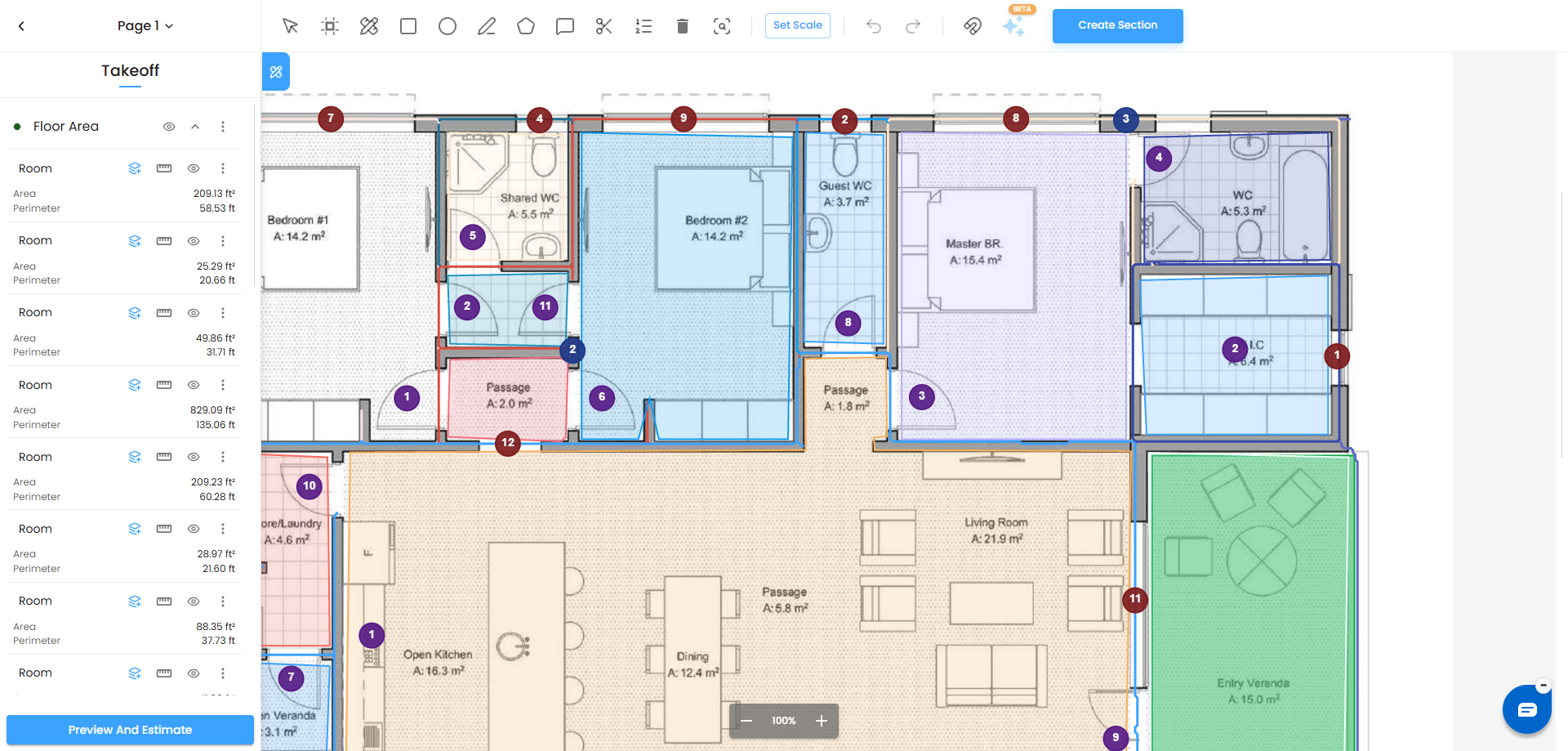
How Measurements Are Organized
All measurements in IntoAEC are grouped into sections inside the Takeoff panel. Sections let you organize your work by floor, trade, zone, or any category that suits your project.
- Every plan starts with a default section called Uncategorized
- The Uncategorized section cannot be renamed or deleted
- All newly drawn shapes go into Uncategorized unless you move them
- You can create as many additional sections as you need
- Each section shows the name of every measurement item inside it, along with its individual result and a running total for the section
Measuring an Area Manually
To measure an area on the plan, use any of the area drawing tools — Rectangle, Polygon, or Circle. You can also use AI Measure Area where available. The steps below use the rectangle as an example, but the same logic applies to other area shapes.
- Select the Rectangle (or Polygon / Circle) tool from the toolbar.
- Click and drag over the area you want to measure on the plan and double-click to complete the shape. A blue highlight fills the shape as you draw.
- The measurement is calculated instantly and a live tooltip appears on the canvas showing the calculated values.
Depending on the shape, the measurement result can include:
- Area – The total surface area of the selected shape.
- Perimeter – The total distance around the shape.
- Circumference – Shown for circular measurements.
- Pitch-adjusted Area – Shown when a pitch value is entered for the measurement.
- The measured item is added to the selected section in the Takeoff panel, showing a system-generated name and the calculated result.
- To rename the item, double-click the name in the Takeoff panel and type your preferred label — for example, Bedroom, Kitchen, or Living Room. Press Enter to confirm.
The Takeoff panel updates the measurement values and section total automatically whenever a measurement is added or edited.
AI Measure Area
When using AI Measure Area, IntoAEC automatically detects the selected area and calculates the measurement results. The result can include Area, Perimeter where applicable.
For circular areas, the result also includes the Circumference.
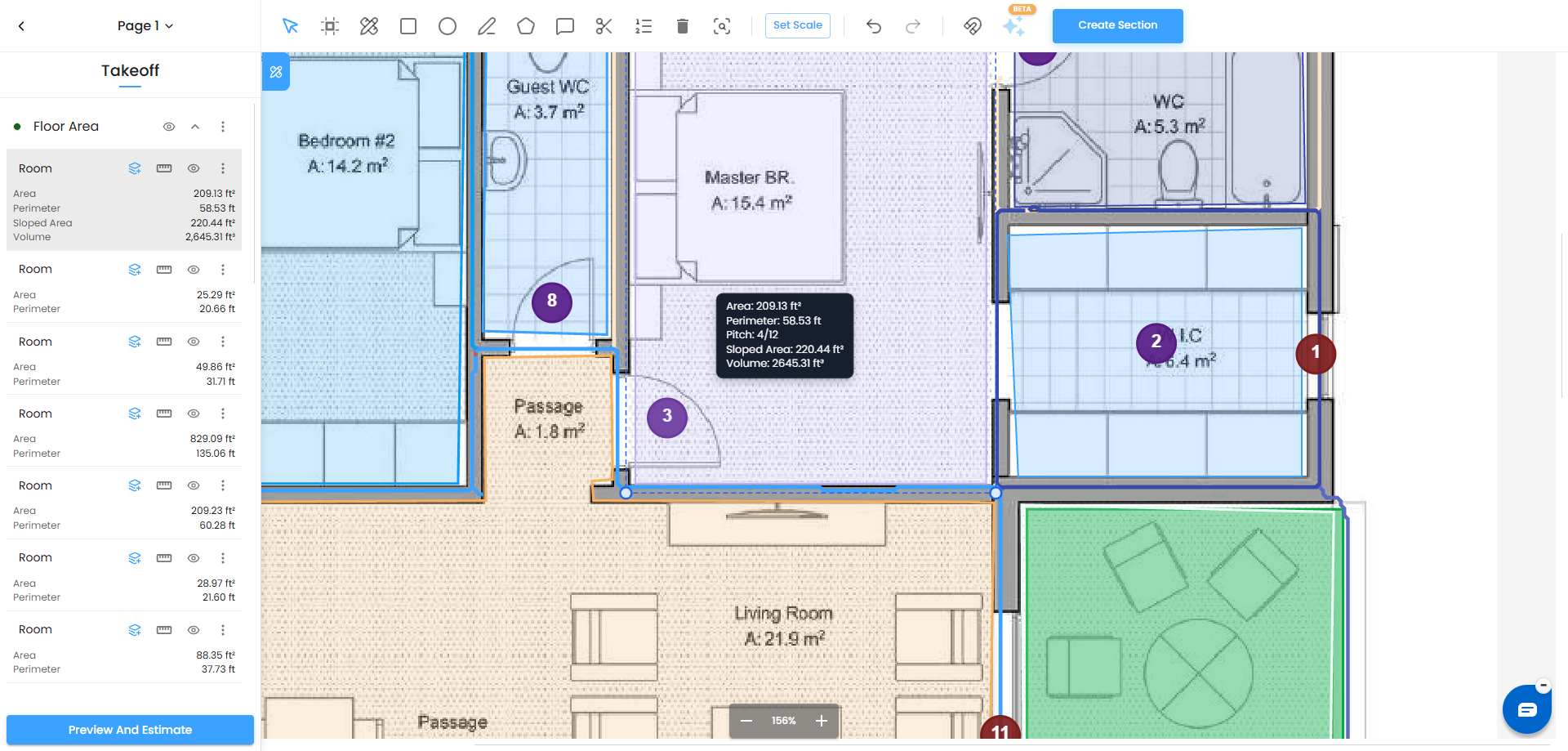
Editing a Measurement's Dimensions and Pitch
If you need to adjust the dimensions or roof slope of a shape after drawing it, you can edit them directly without redrawing the measurement.
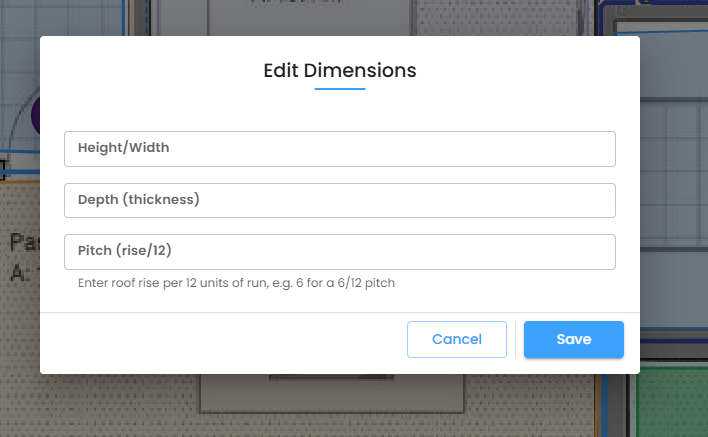
- Click the ruler icon next to the measurement item in the Takeoff panel, or click the three-dot menu (⋯) and select Edit Dimensions.
- The Edit Dimensions dialog opens with the available measurement fields.
Dimensions
Depending on the shape, you can edit the measurement dimensions, such as:
- Height / Width – The primary dimensions of the shape.
- Depth (thickness) – An optional secondary dimension, such as slab thickness for a concrete area.
Only one dimension can be edited at a time for area shapes.
Pitch
For roof or sloped-surface measurements, you can also enter a Pitch value. The pitch input depends on the measurement unit:
For Imperial measurements (ft²):
The pitch is entered as Pitch (rise/12).
Enter the roof rise for every 12 units of horizontal run.
For example:
- 6 = 6/12 pitch
- 8 = 8/12 pitch
- 12 = 12/12 pitch
For Metric measurements (m²):
The pitch is entered as Pitch (degrees).
Enter the roof slope angle in degrees.
For example:
- 30 = 30° pitch
- 45 = 45° pitch
How Pitch Changes the Area
A plan shows a roof or sloped surface as a flat 2D footprint. A pitched surface is actually longer because it rises at an angle. IntoAEC uses the pitch to calculate the corresponding true sloped surface area.
Imperial – ft²
For measurements in ft², pitch is entered as Rise / 12.
The pitch multiplier is:
Pitch Multiplier = √(144 + Rise²) / 12
The system then applies this multiplier to the flat area:
True Sloped Area = Flat Area × Pitch Multiplier
Example:
- Flat Area = 100 ft²
- Pitch = 6 (6/12)
- Pitch Multiplier ≈ 1.118
- True Sloped Area ≈ 111.8 ft²
In simple terms, a 6/12 roof rises 6 inches for every 12 inches of horizontal run, so the actual sloped surface is larger than the flat footprint.
Metric – m²
For measurements in m², pitch is entered as an angle in degrees.
The pitch multiplier is:
Pitch Multiplier = 1 / cos(θ)
The system then applies this multiplier to the flat area:
True Sloped Area = Flat Area × Pitch Multiplier
Example:
- Flat Area = 10 m²
- Pitch = 45°
- Pitch Multiplier ≈ 1.414
- True Sloped Area ≈ 14.14 m²
In simple terms, a 45° roof slopes upward at a 45-degree angle, making the actual surface area larger than the flat footprint.
Quick Reference
| Measurement | Pitch Input | Calculation |
|---|---|---|
| Imperial (ft²) | Rise / 12 | √(144 + Rise²) / 12 |
| Metric (m²) | Degrees (°) | 1 / cos(θ) |
After you enter or change the pitch, click Save. IntoAEC recalculates the measurement and updates the displayed area and section total.
Creating and Managing Sections
Sections keep your Takeoff panel organised, especially on large plans with many measurements. You can create a new section at any time.
Creating a new section
- Click the Create Section button in the top-right of the toolbar.
- The Create Section dialog opens. Type a name for the section in the Section Name field — for example, Roofing, Ground Floor, or Electrical.
- Click Create. The new section appears in the Takeoff panel above Uncategorized.
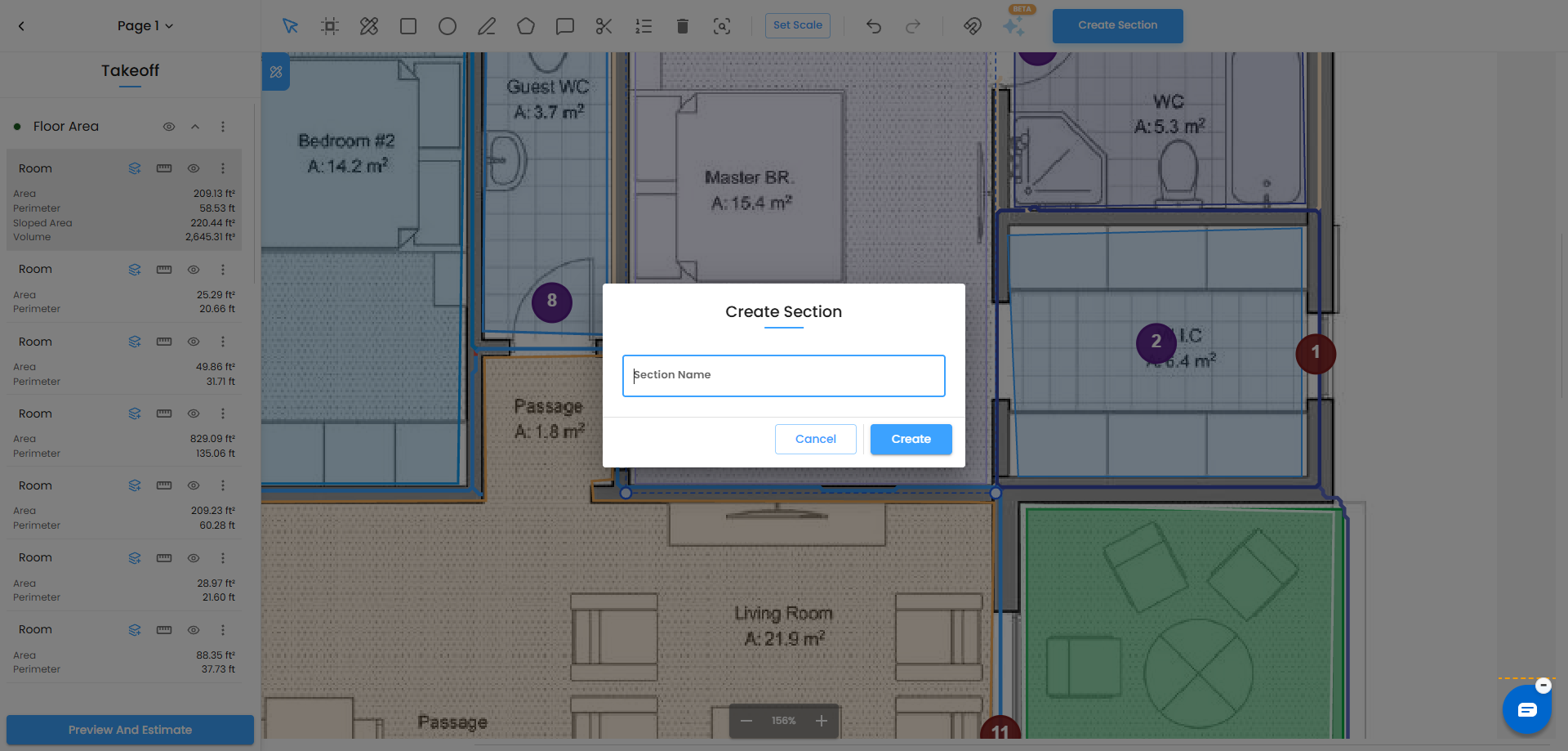
What you can do with sections
- Expand or collapse a section by clicking the arrow next to its name — useful when working with many items
- Rename a section by clicking the three-dot menu (⋯) next to the section name and selecting Rename
- View the total for all items in a section — shown at the bottom of each expanded section
Moving Measurements Between Sections
Once you have created a section, you can move any measurement item into it. This is how you reassign items from Uncategorized into a more meaningful grouping.
- In the Takeoff panel, find the measurement item you want to move.
- Click the layers icon (the move/reassign icon) next to the item, or click the three-dot menu (⋯) and select Move Item.
- Select the destination section from the list.
- The item moves immediately and the totals for both sections update automatically.
Note: You can only move measurements between sections if the unit types match — for example, an area measurement in m² can only be moved to another section that contains area measurements.
Add Show/Hide to the Sections section
I would add this under “What you can do with sections”:
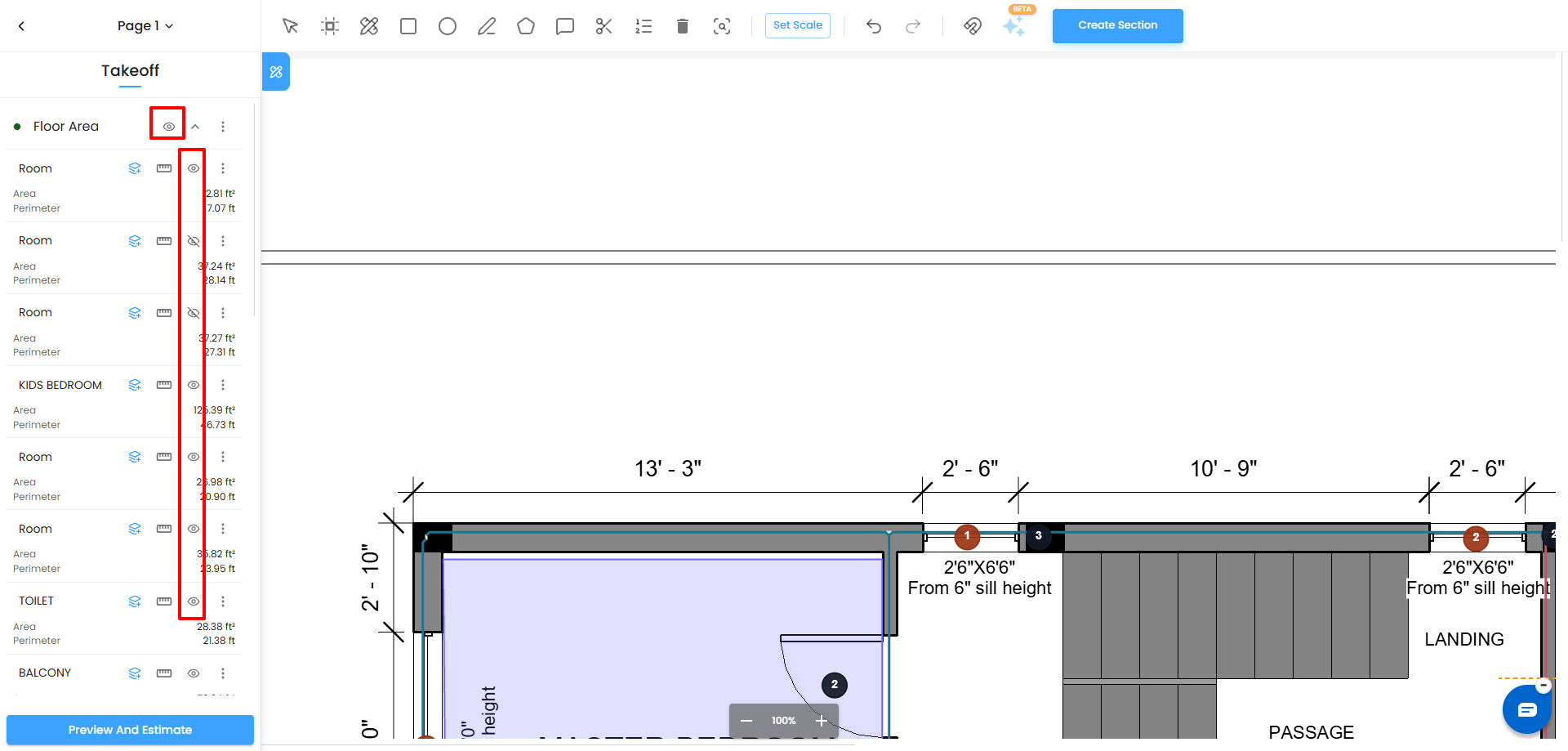
Show or Hide Sections and Measurements
You can control the visibility of measurements directly from the Takeoff panel.
- Use the Show/Hide option for a section to show or hide all measurements within that section on the plan.
- Use the Show/Hide option for an individual measurement to control only that shape.
- When a measurement is hidden, the shape is removed from the plan view but remains available in the Takeoff panel.
- Change it back to Show to make the shape visible on the plan again.
This is useful when working with multiple floors, trades, or measurement categories and you need to temporarily hide shapes without deleting them.
Update “Moving Measurements Between Sections” to include the kebab actions
Replace the current section with this:
Moving and Managing Measurements
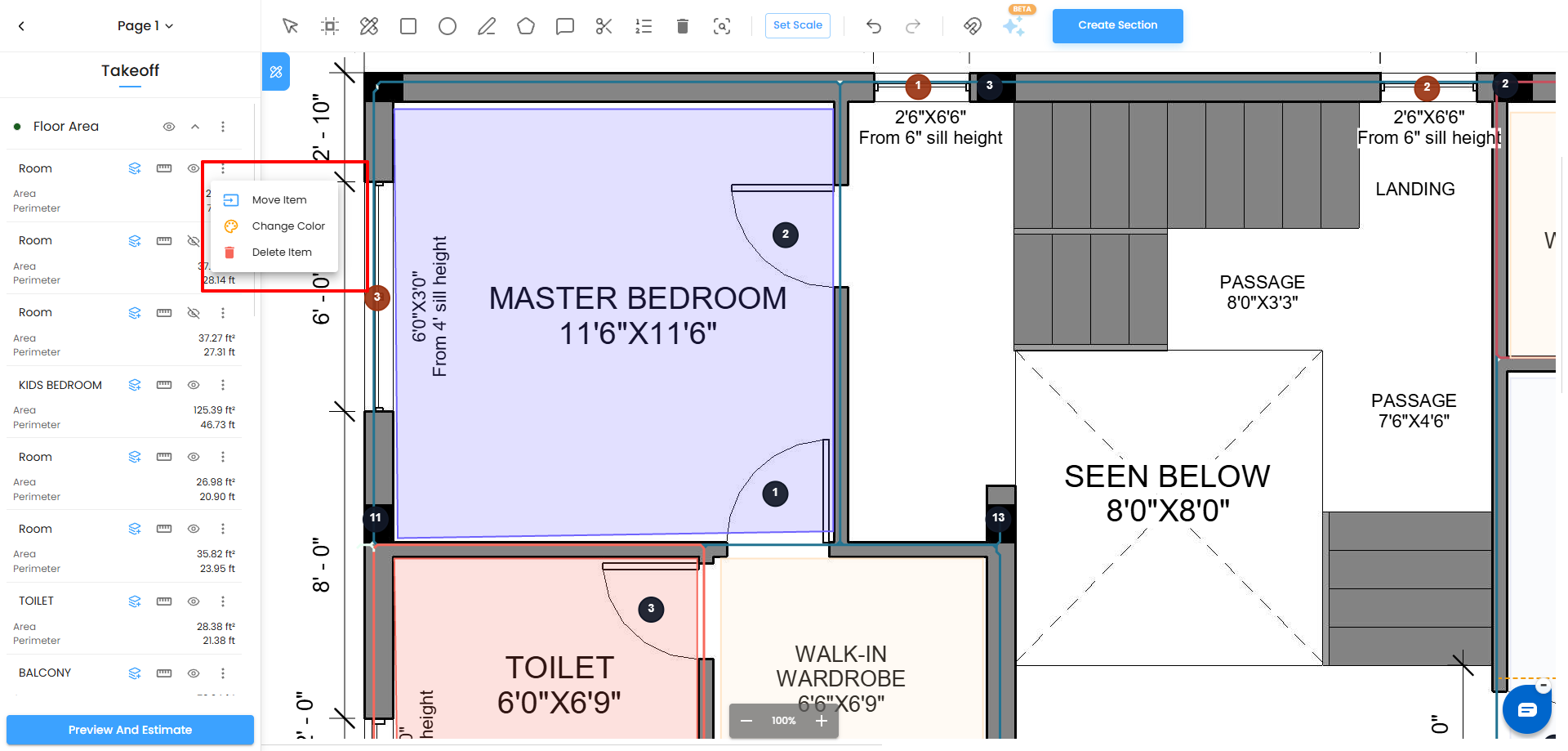
Once you have created sections, you can move measurements between them and manage individual shapes directly from the three-dot menu (⋯).
Move a Measurement to Another Section
If a shape was created in one section but belongs to another section, you can move it without redrawing.
- In the Takeoff panel, find the measurement item you want to move.
- Click the three-dot menu (⋯) next to the measurement.
- Select Move.
- Select the destination section.
- The measurement moves to the selected section and the totals update automatically.
Note: You can only move measurements between sections if the unit types match — for example, an area measurement in m² can only be moved to another compatible area section.
Change the Measurement Colour
You can change the colour of an individual measurement to make different rooms, trades, or zones easier to identify.
- Click the three-dot menu (⋯) next to the measurement.
- Select Change Color.
- Choose a colour from the available palette.
- The shape on the canvas updates immediately.
Delete a Measurement
To remove a measurement:
- Click the three-dot menu (⋯) next to the measurement.
- Select Delete.
- The measurement is removed from the Takeoff panel and the plan.
Adding a Count
Use the Add Count tool to count individual elements on the plan — such as doors, windows, columns, light fittings, or any repeating component. Each click places a marker on the plan and adds one to the count.
- Click the Add Count tool in the toolbar.
- You will be prompted to select an existing section or create a new group for the count.
- Click on the plan at the location of each element you want to count. Every click adds +1 to the count.
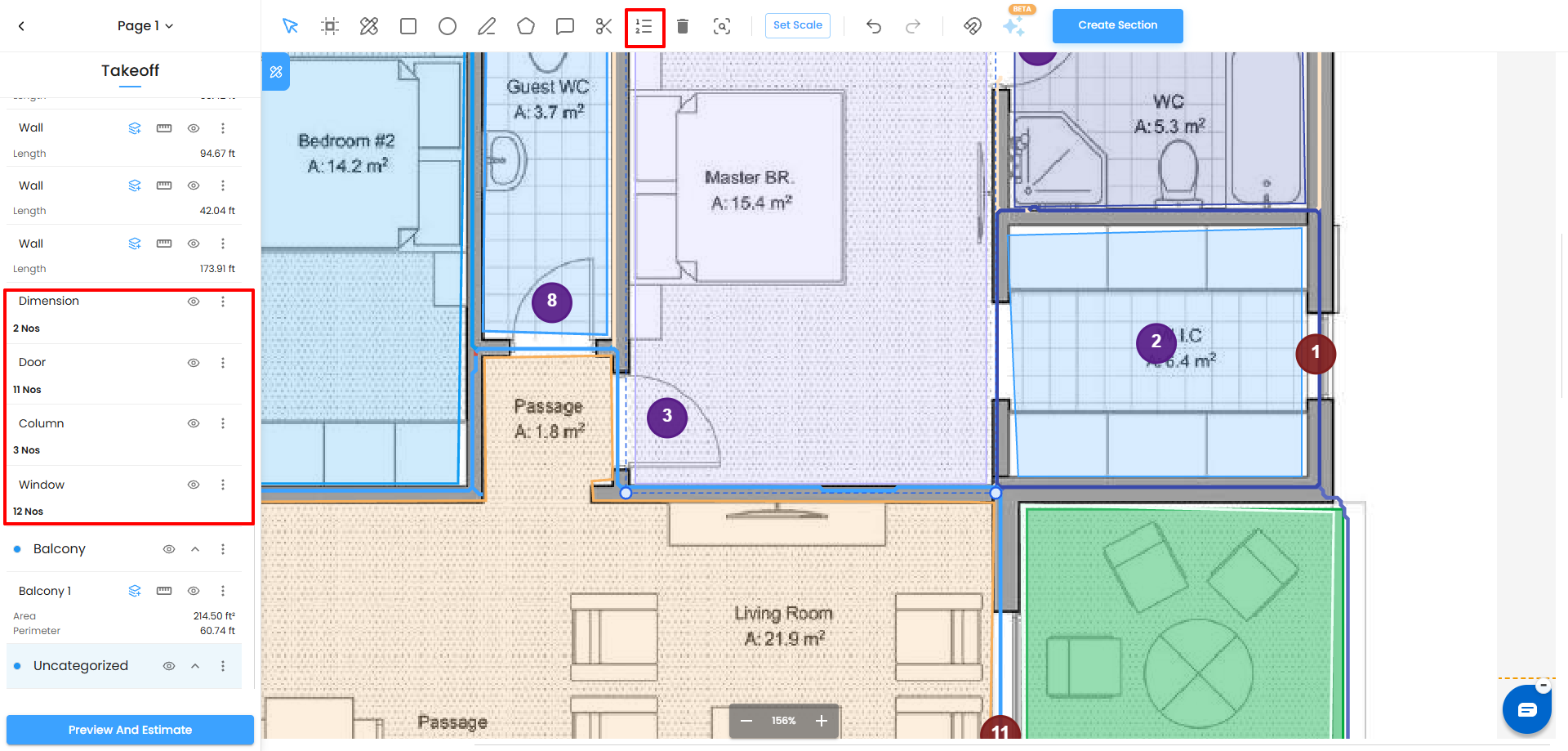
- The count appears in the selected section as Nos (number of items) and updates live as you click.
- When finished, switch back to the Select and Move tool to stop adding counts.
Adding Annotations
Annotations let you attach written notes directly onto the plan canvas. They are purely visual — they do not affect any measurement or calculation.
- Click the Add Annotation tool in the toolbar. The annotation icon in the toolbar highlights to show it is active.
- Click anywhere on the plan where you want to place the note. A yellow "Enter text" box appears at that location on the canvas.
- Type your comment or note in the text field.
- An arrow marker is placed at the spot you clicked. You can drag the arrow to reposition it if needed after placing it.
- The annotation stays on the canvas as a visual reference. It is visible to anyone viewing the plan inside IntoAEC but does not appear in measurement totals or material breakdowns.
Useful ways to use annotations:
- Flag areas that still need measuring
- Mark scope boundaries or exclusions
- Leave queries for team members reviewing the plan
- Note site conditions or special instructions against a specific location
Tips
- Rename measurements as soon as you draw them — it is much harder to identify items later if they all have system-generated names.
- Create sections before you start drawing if you already know your trade or floor breakdown. This way you can move items into the right section as you go rather than reorganizing everything at the end.
- Use colour coding alongside sections — for example, all Roofing shapes in red and all Flooring shapes in blue — so the canvas gives you an instant visual overview of what has been measured and what is still outstanding.
Was this article helpful?
That’s Great!
Thank you for your feedback
Sorry! We couldn't be helpful
Thank you for your feedback
Feedback sent
We appreciate your effort and will try to fix the article