Ask Zyra — AI-Powered Takeoff
Manually tracing every room on a floor plan takes time, even with good drawing tools. Ask Zyra is IntoAEC's AI-powered takeoff feature that does this work for you. In seconds, Zyra scans your uploaded 2D plan, detects every room and space, identifies structural components like walls, and generates measurement shapes automatically — all organized into labelled sections in the Takeoff panel before you have drawn a single line.
Ask Zyra is currently in Beta. Results are highly accurate on standard architectural floor plans and improve with cleaner, well-dimensioned PDFs.
What Zyra Does Automatically
When you trigger Ask Zyra, the AI performs three things in sequence without any input from you:
- Scans the plan — reads the full PDF geometry, room boundaries, and printed text labels.
- Detects spaces and components — identifies individual rooms, open areas, walls, and structural elements.
- Generates shapes — draws measurement polygons over every detected space and places them into organized sections in the Takeoff panel, each with its area or length already calculated.
The result is a fully populated Takeoff panel in under two minutes, compared to the same task done manually which could take an hour or more on a complex multi-room plan.
Before You Run Zyra
Zyra requires a scale to be set before it can generate accurate measurements. If you have not yet set the scale, Zyra will prompt you to do so when you click the AI button.
- Set the scale first using a known reference dimension on the plan
- Once the scale is set, Zyra uses it to calculate the real-world area and length of every shape it generates
See the Setting the Scale article for full instructions.
How to Run Ask Zyra
- Click on Clients/Projects and choose your project. Click on 2D Takeoff and upload a new plan or click on edit to edit an existing plan.
- Open your plan on the takeoff canvas.
- Set the scale if you have not already done so.
- Click the Ask Zyra AI button in the top-right area of the toolbar. A tooltip appears confirming "Ask Zyra to Generate Shapes".
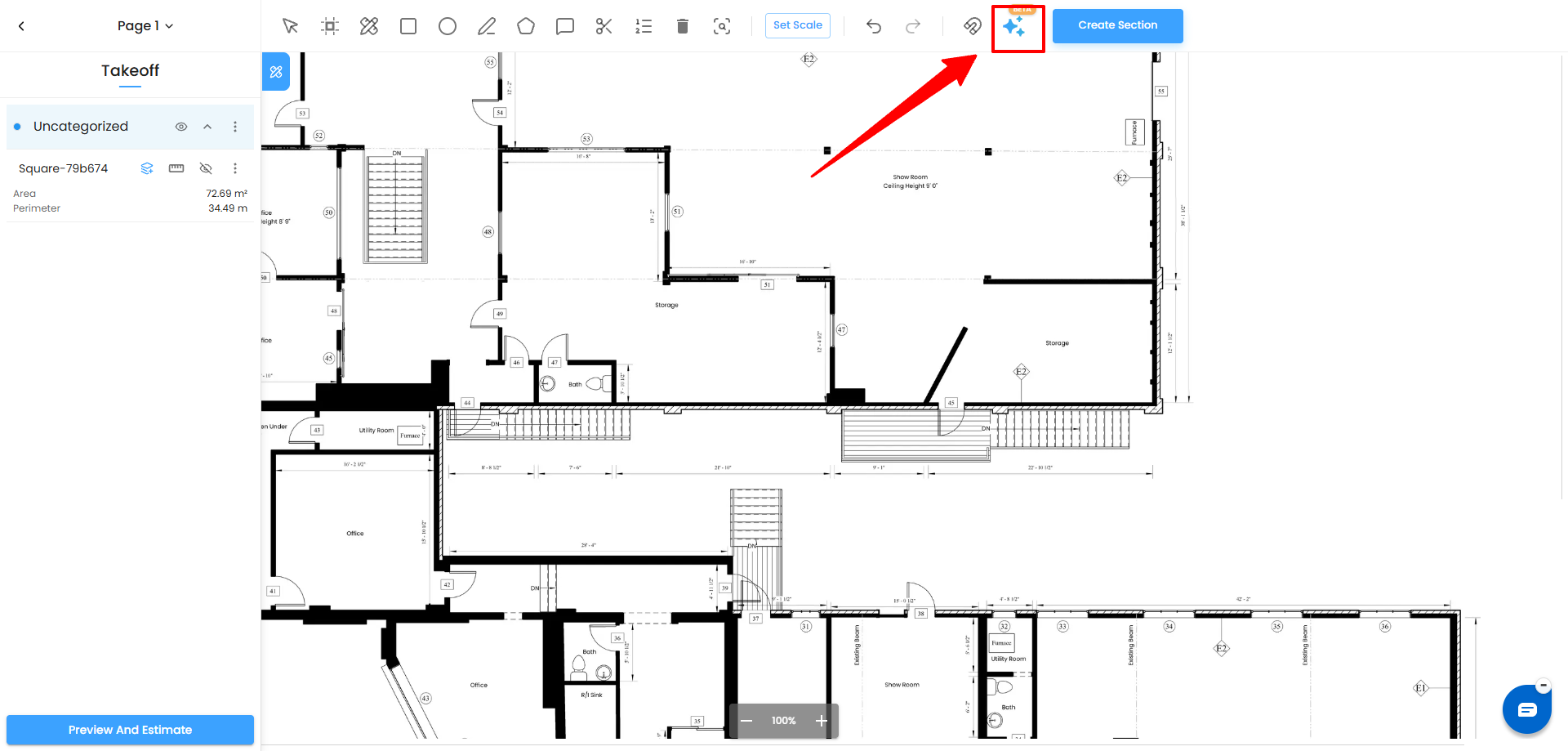
- If the scale has not been set, the Set Scale dialog opens first — complete the scale setup to continue.
- The canvas dims and a Scanning... screen appears with a progress bar. Zyra reads the full geometry of your plan. This typically takes 20–40 seconds depending on plan complexity.
- Once complete, the canvas returns to normal and a Saving... indicator briefly appears in the top-right corner as Zyra writes all the generated shapes to your plan.
- The Takeoff panel on the left is now fully populated with all detected measurements, grouped into sections automatically.
What You See After Zyra Runs
On the Canvas
Every detected room or space is highlighted with a distinct colour — pink, yellow, green, blue, teal, and others — so you can immediately see what has been measured and distinguish one space from another at a glance. Hovering over any shape shows its area in a live tooltip directly on the plan.
Count markers — small circled numbers — appear on elements Zyra has counted, such as doors, windows, and structural components. These indicate how many of each element Zyra identified in that location.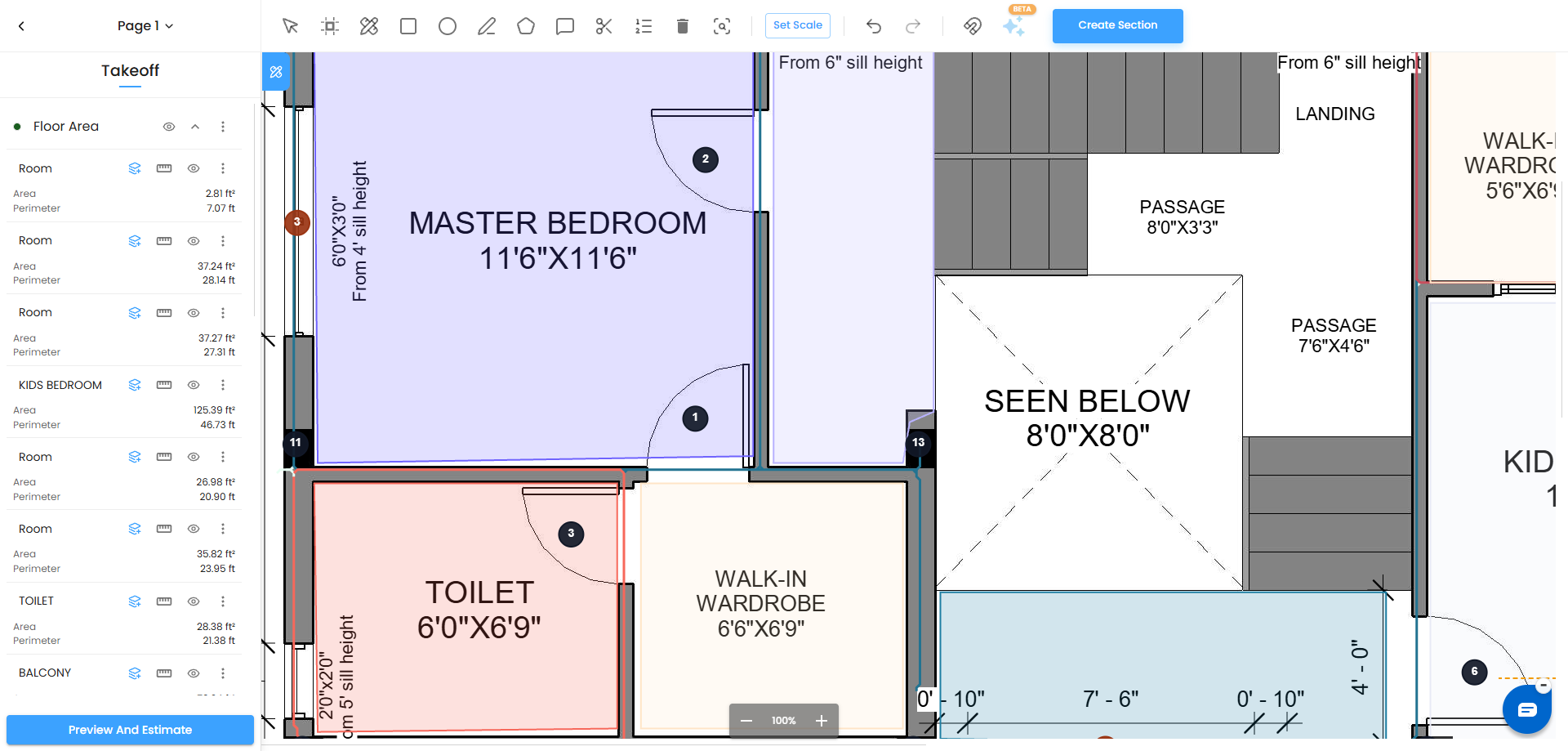
In the Takeoff panel
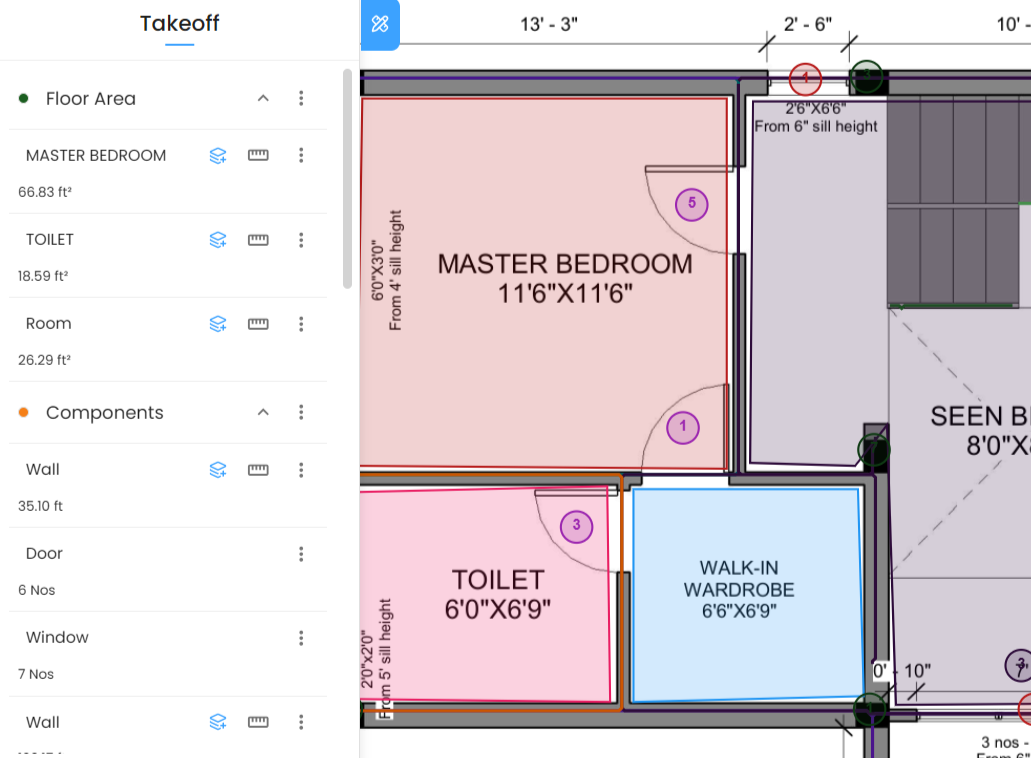
Zyra organizes all generated measurements into two sections automatically:
- Floor Area — contains all detected room and space shapes, each labelled Room by default and showing its calculated area.
- Components — contains structural linear measurements such as walls, each labelled Wall and showing its measured length.
After Zyra Generates Shapes
The AI-generated shapes are a starting point. You can review, refine, and build on them just like any manually drawn shape.
Rename Items : All rooms are initially labelled Room and all linear elements are labelled Wall. Double-click any item name in the Takeoff panel to rename it to something meaningful — for example Master Bedroom, Kitchen, Living Room, or External Wall.
Edit Shape Boundaries: If a shape does not perfectly match the room boundary on the plan, select it using the Select and Move tool or double click it. You can drag the edges to resize it, or double-click on any edge to add a new polygon point and adjust the boundary precisely. This is especially useful when Zyra's detected boundary includes a wall thickness you want to exclude, or misses a small recess.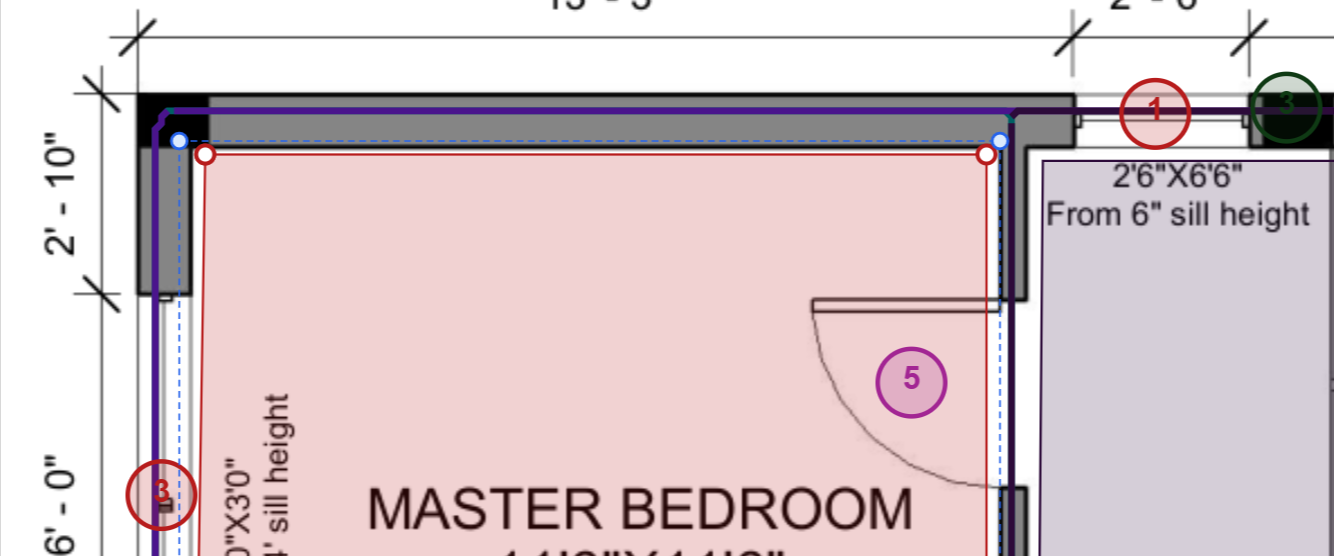
Delete Unwanted Shapes: If Zyra has generated a shape over an area you do not need — such as a stairwell, void, or external area — click the three-dot menu (⋯) next to the item in the Takeoff panel and select Delete Item, or select the shape on the canvas and click the Delete tool in the toolbar.
Add Missing Shapes Manually: If Zyra has missed an area — for example a small utility room, a balcony, or a feature that was not clearly bounded on the plan — simply draw it manually using any of the drawing tools. It will be added to the Takeoff panel alongside Zyra's generated shapes.
Move Items Between Sections: Use the layers icon next to any item to move it from the Floor Area or Components section into a custom section you have created — for example moving all bathroom rooms into a Wet Areas section or all external walls into a Structural section.
Tips for Getting the Best Results from Zyra
- Use clean, vector PDFs. Zyra reads geometric boundaries, not pixel patterns. A plan exported directly from CAD software gives much better results than a scanned photograph of a drawing.
- Ensure room boundaries are closed: The hatched walls should be clearly defined so that AI Zyra can accurately detect the boundaries
Set an accurate scale: Zyra's area calculations are only as accurate as the scale you provide. Use a long reference line and zoom in before clicking your scale points.
- Run Zyra on one page at a time: If your PDF has multiple sheets, navigate to the sheet you want to measure and run Zyra on that page. Zyra processes the currently visible page.
- Always review before proceeding to material takeoff: Zyra is very accurate on well-drawn plans, but always scroll through the full Takeoff panel after it completes to spot any missed spaces, misidentified boundaries, or items that need renaming before you run material breakdowns.
Related articles
- Setting the Scale
- Drawing Measurement Areas Manually
- Measuring Areas, Sections, Counts, and Annotations
- Running a Material Takeoff
Was this article helpful?
That’s Great!
Thank you for your feedback
Sorry! We couldn't be helpful
Thank you for your feedback
Feedback sent
We appreciate your effort and will try to fix the article