Overview
Link project expenses to individual schedules, link unpaid expenses, and define the progress percentage at which each payment should be released. This helps you manage scheduled payments and coordinate with accountants when payments fall due.
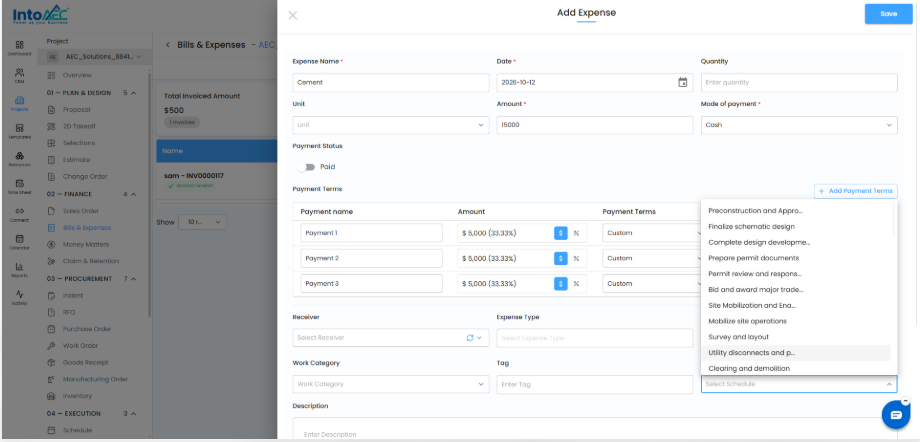
1. Create an Expense with Payment Terms
- Open the required Project.
- Go to Finance → Bills & Expenses.
- Click the option to create a new expense.
- Enter Expense Name, Date, Amount, and Mode of Payment.
- Under Payment Terms, click + Add Payment Terms.
- Enter the payment name, amount, and terms for each installment.
- In the Schedule dropdown, select the schedule to link.
- Click Save.
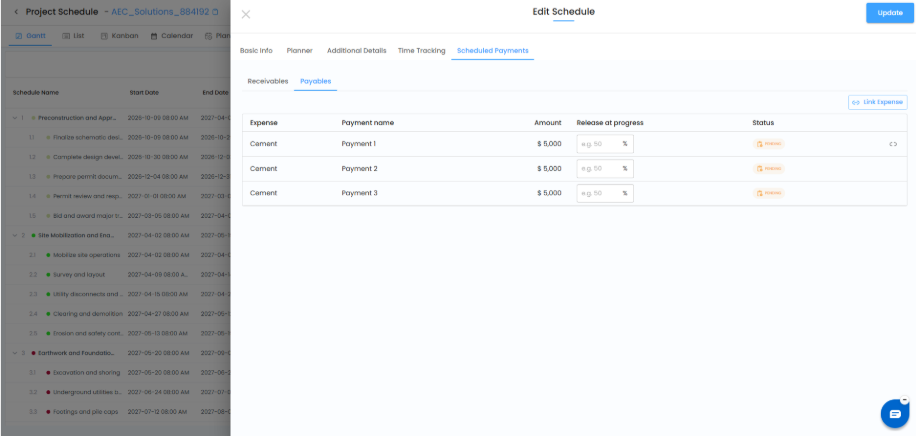
2. View Linked Expenses in the Schedule
- Open the project and go to Execution → Schedule.
- Open the schedule and click Edit.
- Select the Scheduled Payments tab.
- Click Payables.
| Column | Description |
|---|---|
| Expense | Name of the linked expense. |
| Payment Name | The installment name. |
| Amount | Amount for the payment. |
| Release at Progress | Schedule progress percentage at which payment should be released. |
| Status | Current status, such as Pending. |
Enter a percentage in Release at Progress to define when each payment becomes due. For example, 50% associates the payment with the schedule reaching 50% completion.
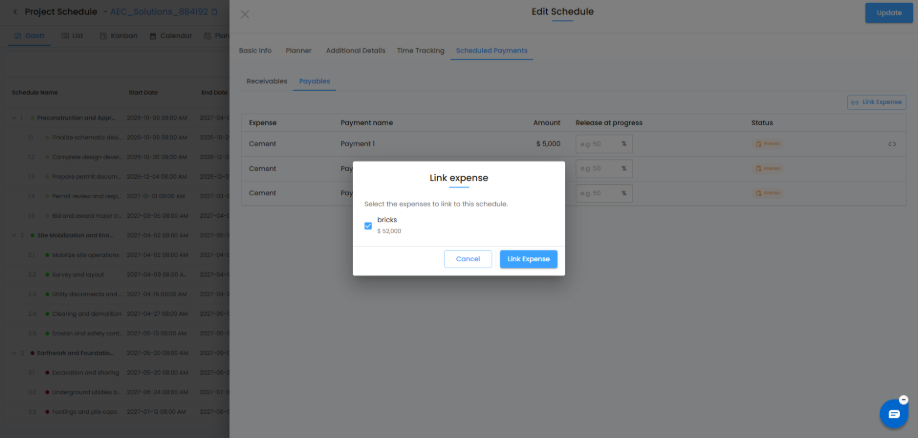
3. Link an Existing Unpaid Expense
- Open the project schedule, select the schedule, and click Edit.
- Go to Scheduled Payments → Payables.
- Click Link Expense.
- In the popup, select the expense using its checkbox.
- Click Link Expense to confirm.
The expense now appears under Payables.
4. Manage Payments Based on Progress
When a schedule reaches the configured completion percentage, the payment becomes eligible for release, helping you coordinate with accountants. This gives you visibility into upcoming payments tied to real project progress.
Summary
Linking expenses to schedules lets you manage unpaid expenses, set progress-based release percentages, and track payment status in the Project Schedule.
Related Articles
- Gantt View
- Schedule / Milestone Linking to Invoice
Need Further Assistance?
Contact your organization administrator or the IntoAEC support team.
Was this article helpful?
That’s Great!
Thank you for your feedback
Sorry! We couldn't be helpful
Thank you for your feedback
Feedback sent
We appreciate your effort and will try to fix the article