Overview
You can link an existing invoice to a schedule or milestone to see which invoices are connected to project progress and to manage billing against completed or planned work.
Link an Invoice
- Open the required Project.
- Go to Project Schedule (Gantt View).
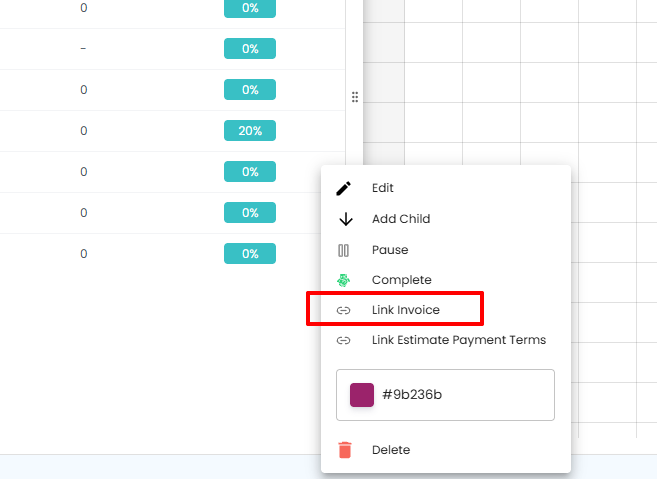
- Open the action menu for the schedule or milestone.
- Click Link Invoice.
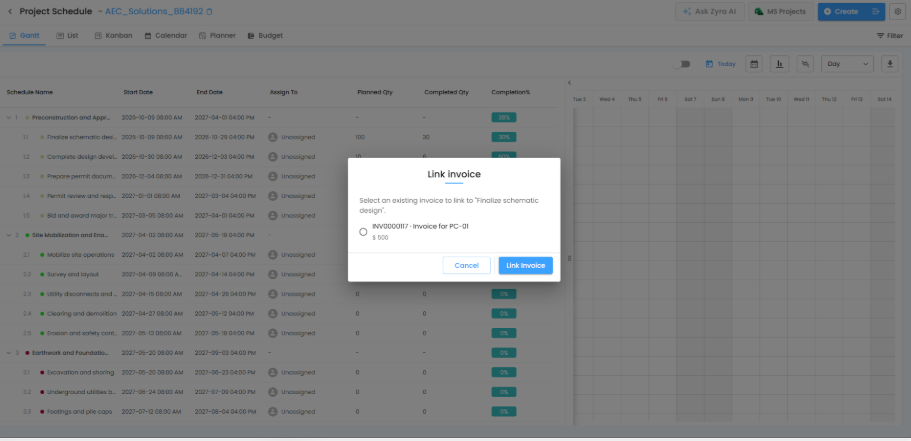
Select the invoice
- In the popup, review the available invoices.
- Select the invoice to link.
- Click Link Invoice to confirm.
Note: Link Invoice is disabled for a schedule created by converting an estimate, because it is already linked to that estimate.
View or Unlink a Linked Invoice
After linking, the action menu shows:
- View Linked Invoice – open the invoice for review.
- Unlink Invoice – remove the link if it was connected by mistake.
Check Linked Invoice Details
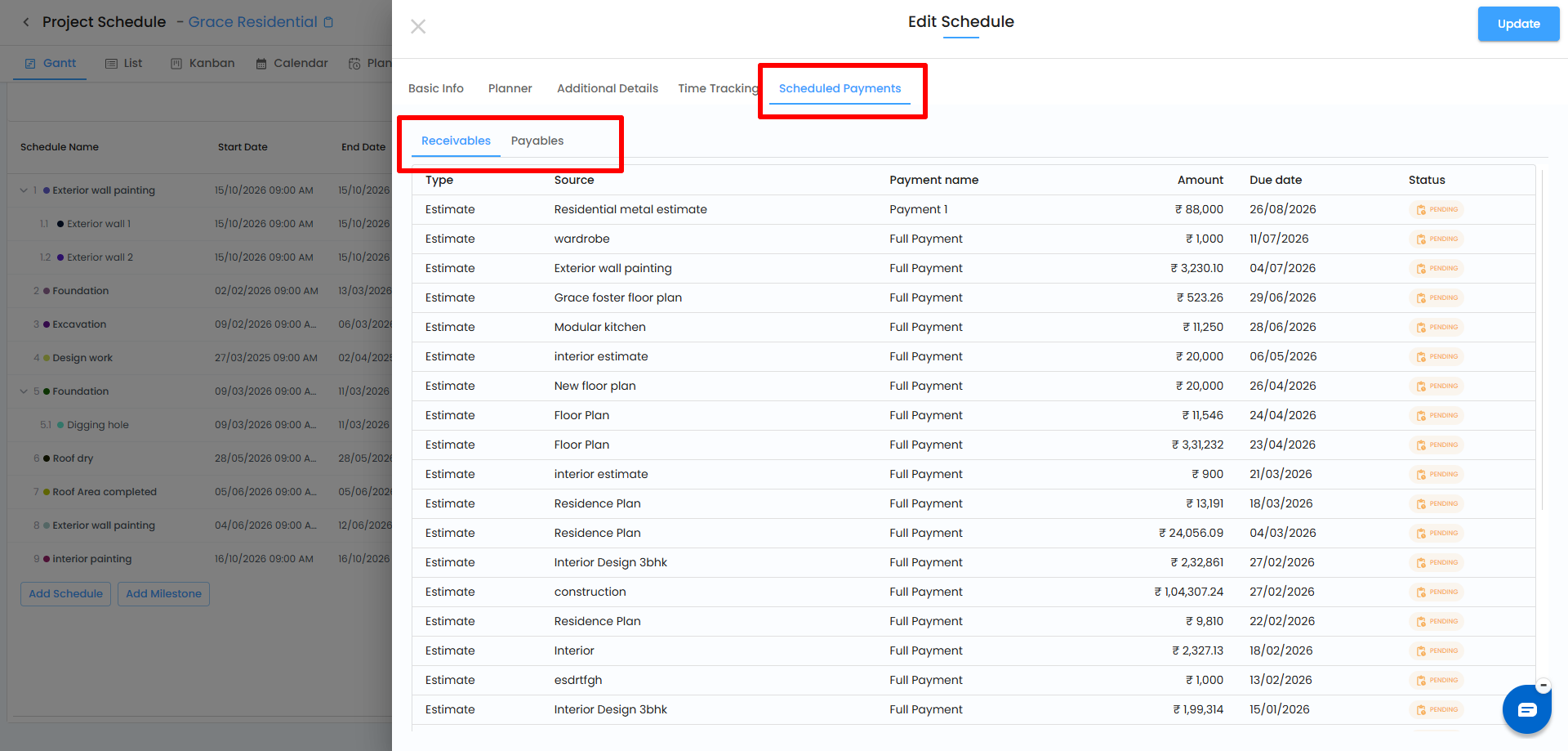
- Open the schedule and click Edit.
- Go to the Scheduled Payments tab.
- Open Receivables.
The invoice appears with its type, source, payment name, amount, due date, and status.
When You Complete the Schedule or Milestone
If an invoice is linked, a completion popup lets you choose Just Complete (no invoice sent) or Send Invoice (complete and send the invoice to the customer). See Gantt View for details.
Summary
Linking invoices to schedules and milestones makes billing easier to track and shows payment status alongside project progress.
Related Articles
- Gantt View
- Linking Estimate Payment Terms to Project Schedule
- Linking Expenses to Project Schedules
Need Further Assistance?
Contact your organization administrator or the IntoAEC support team.
Was this article helpful?
That’s Great!
Thank you for your feedback
Sorry! We couldn't be helpful
Thank you for your feedback
Feedback sent
We appreciate your effort and will try to fix the article