Tax Configuration - Managing Your Tax Rates
Overview
Set up the tax rates your business needs - GST, VAT, or any custom rate - once here, and they're ready to apply across invoices, estimates, and other transactions.
Getting There
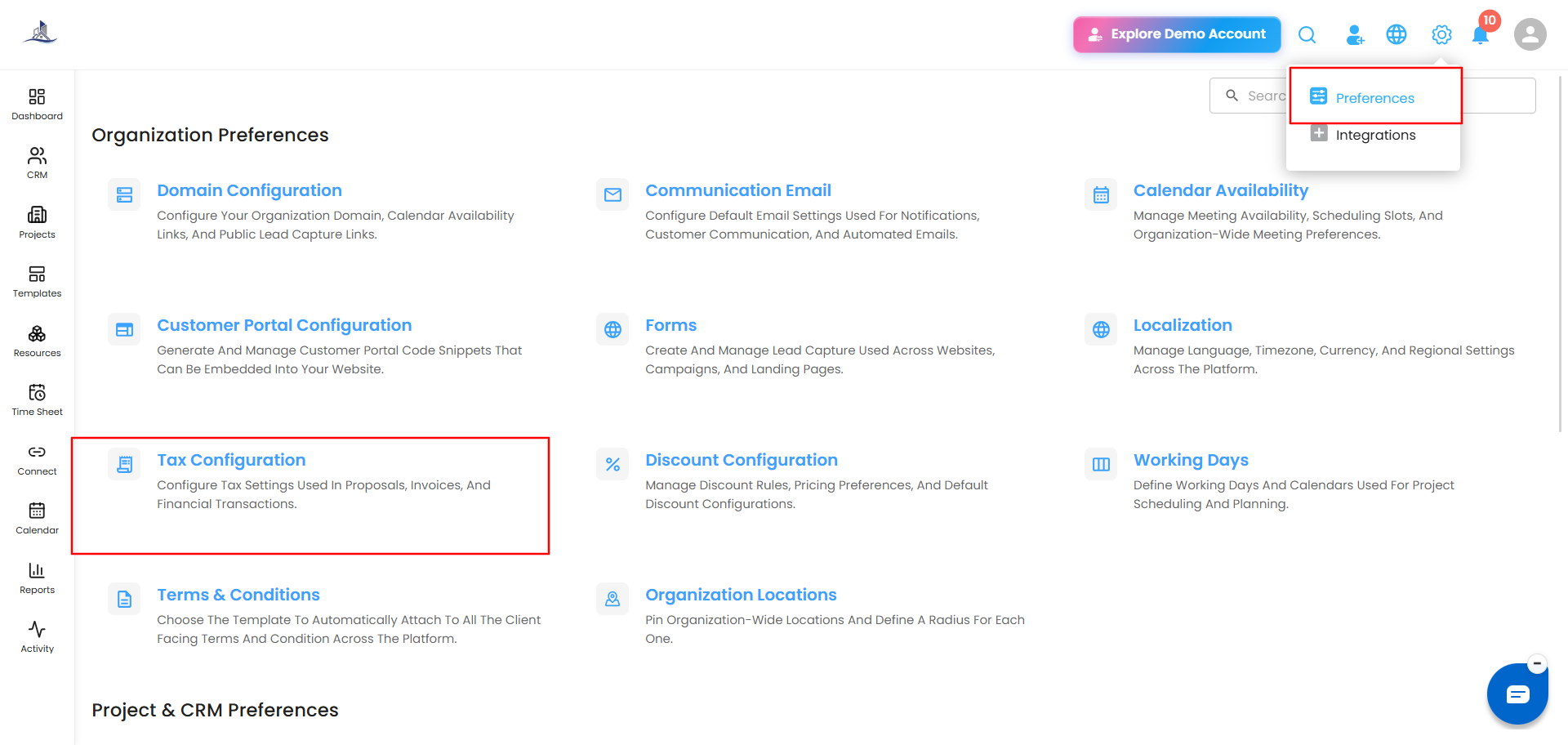
Click Settings (the gear icon) in the top right, select Preferences, then go to Tax Configuration.
 Adding a Tax
- Click Add Tax in the top right.
- Enter the Tax Name and the Percentage (%).
- Click Save.
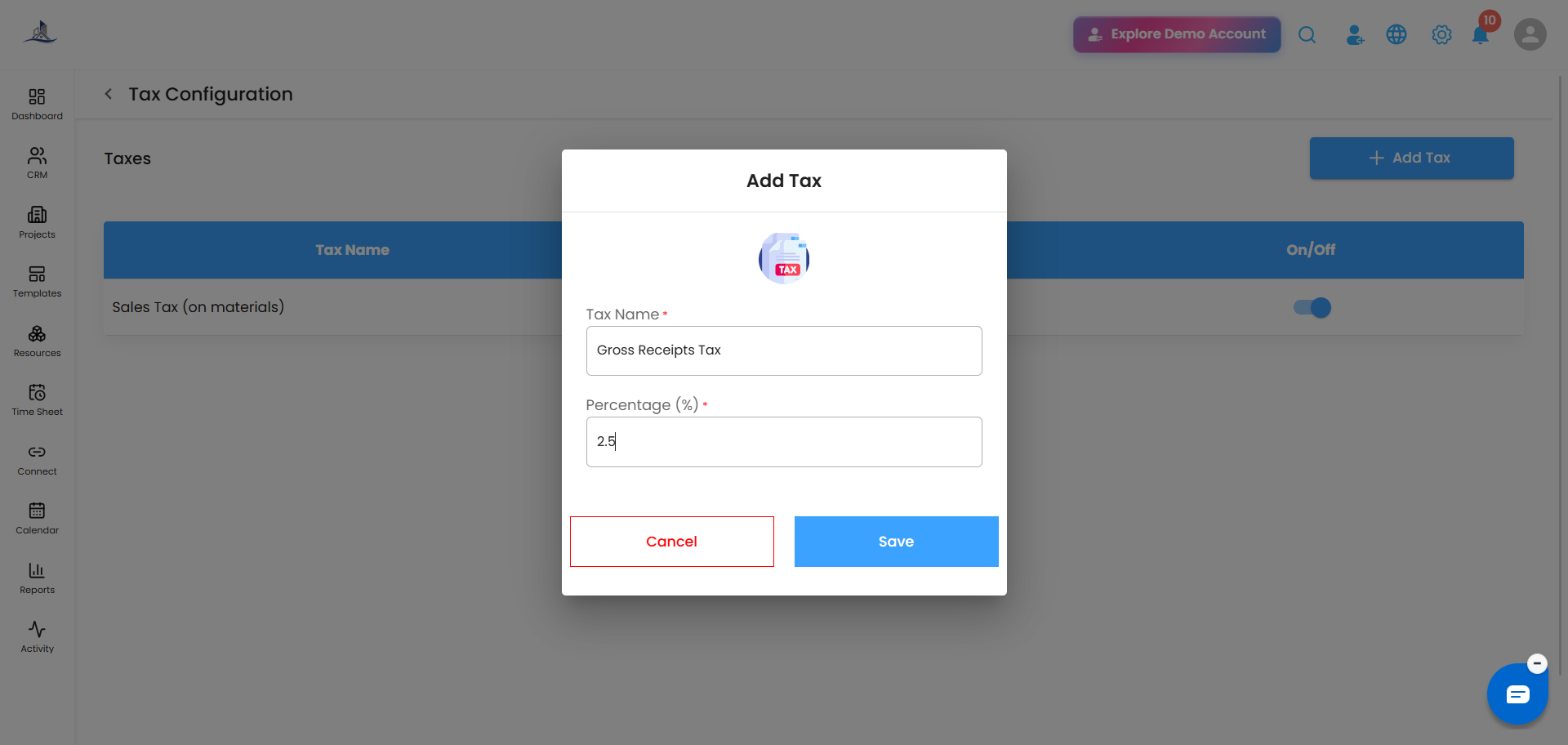
Once saved, the new tax appears immediately in the Taxes table, ready to use in invoicing and other transactions.
Editing a Tax
Click the three-dot menu next to any tax, then select Edit to update its name or rate. Save your changes when you're done.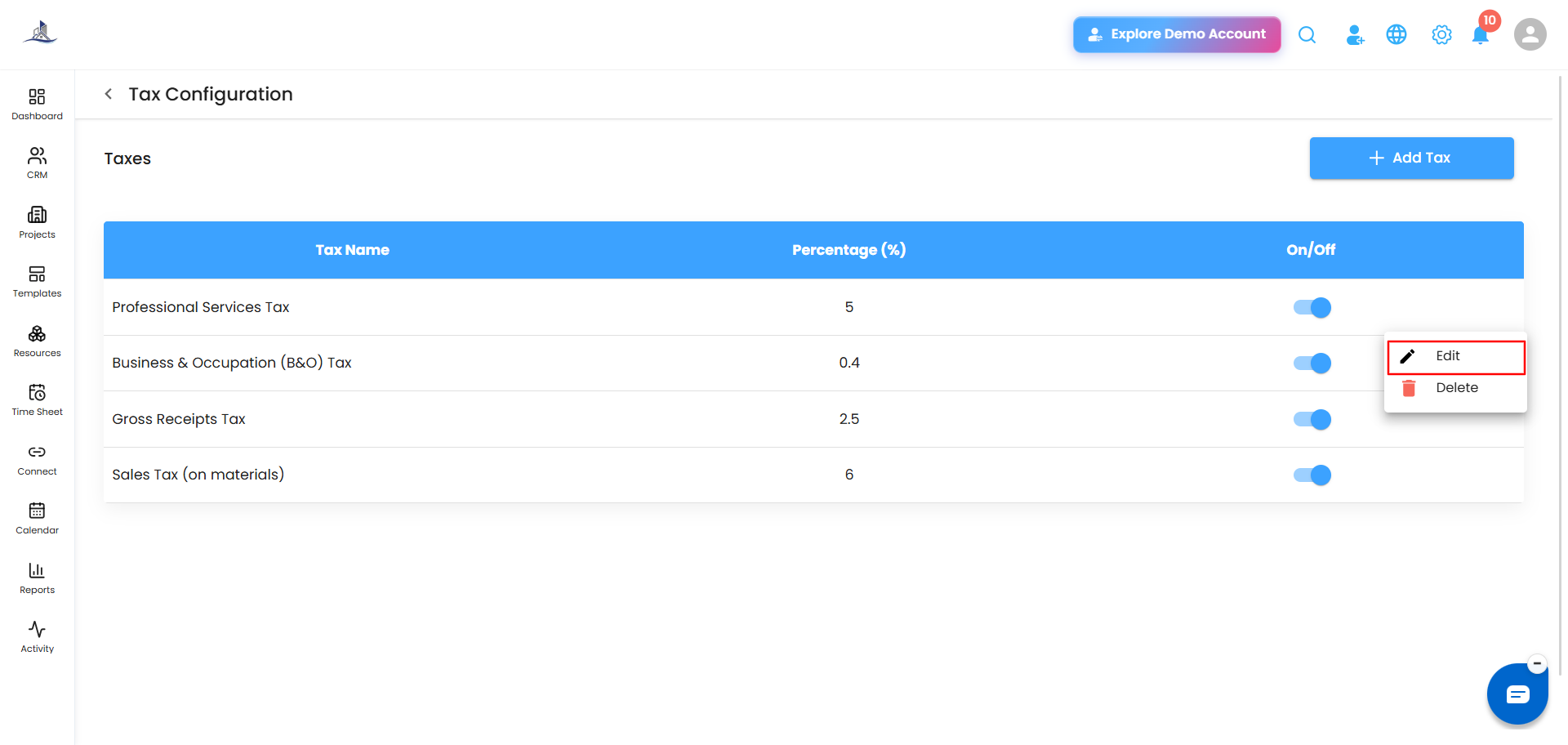
Turning a Tax On or Off
Use the On/Off toggle next to any tax to activate or deactivate it without deleting it. An inactive tax won't be available to apply on new transactions, but stays in your list for later.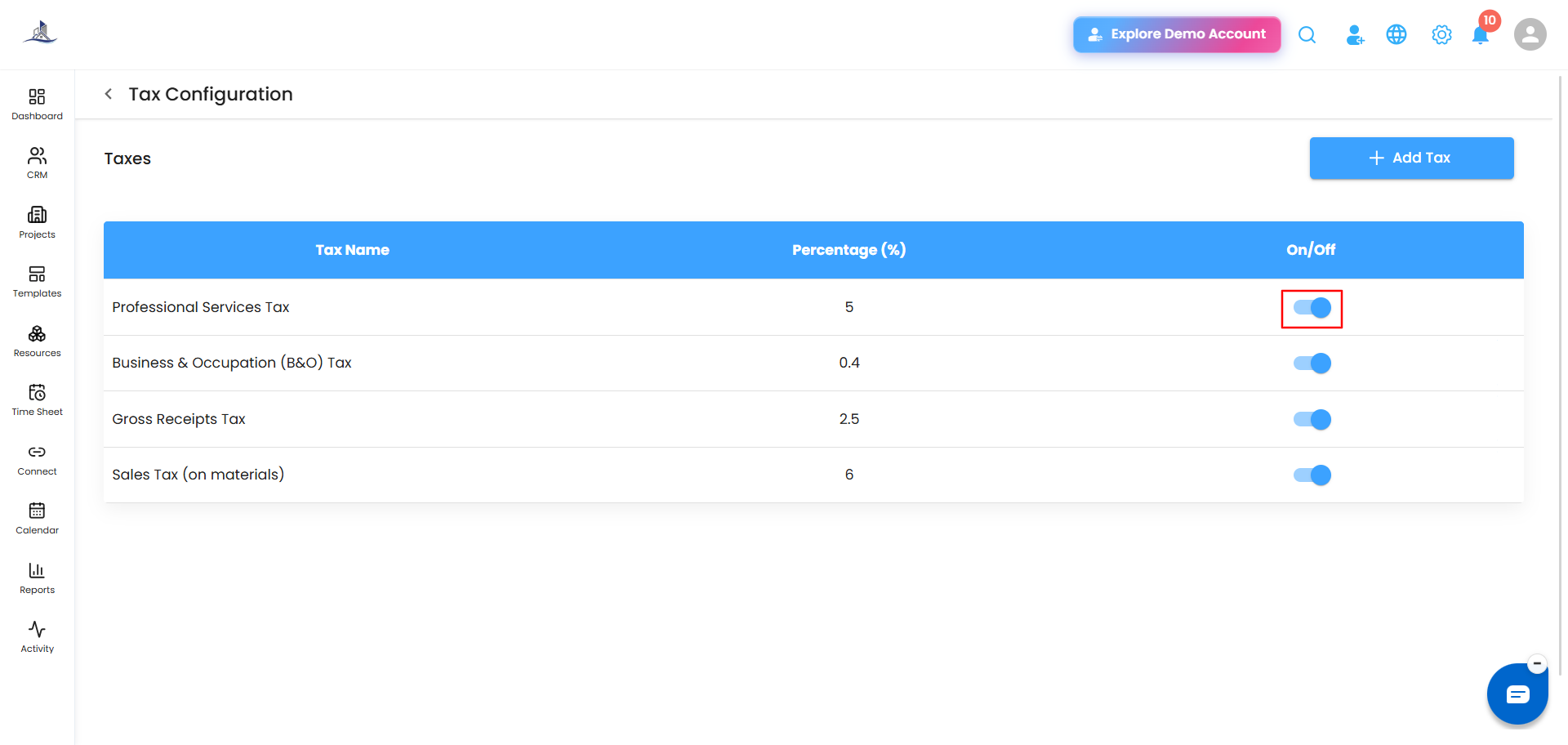
Deleting a Tax
Click the three-dot menu next to a tax and select Delete. Confirm the deletion when prompted.|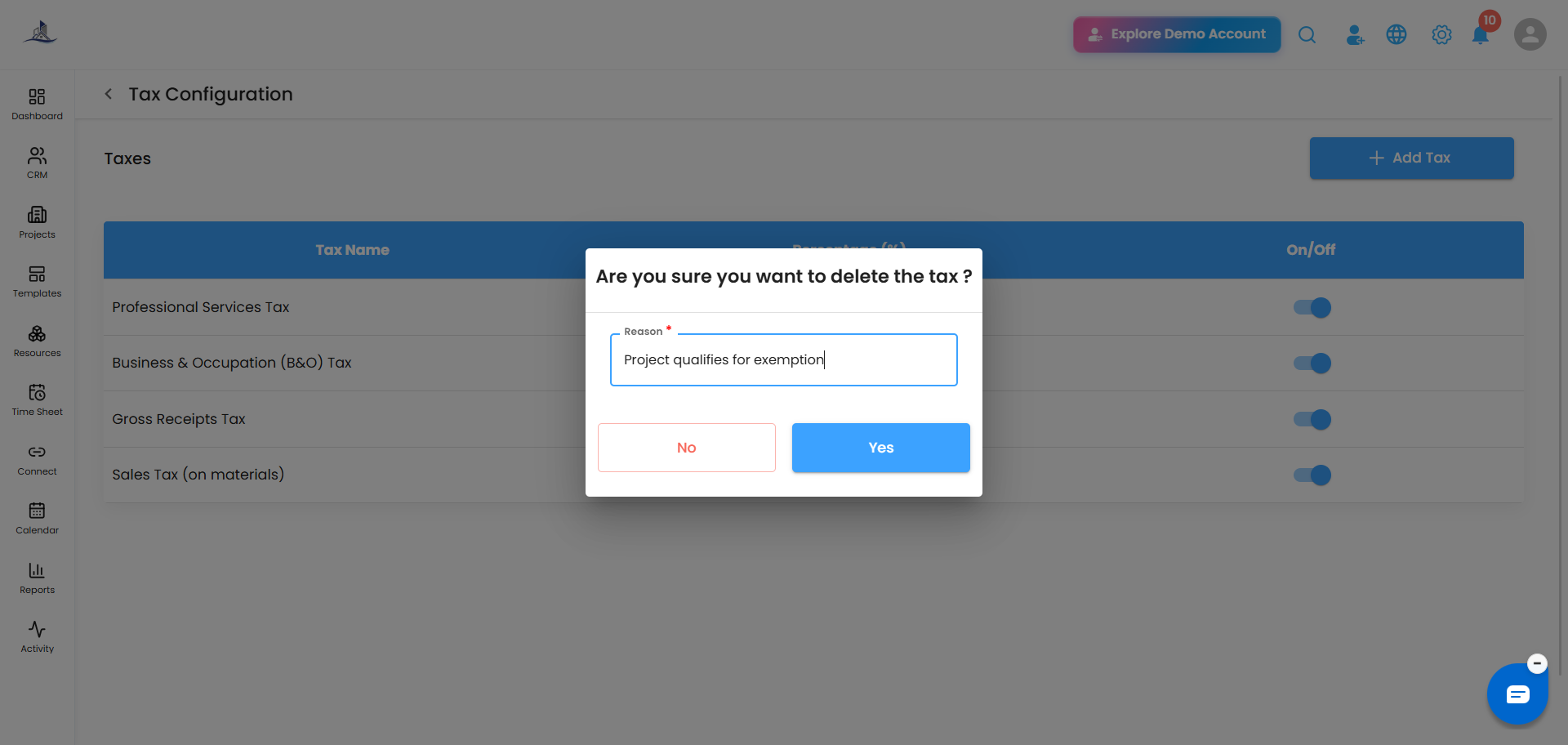
Was this article helpful?
That’s Great!
Thank you for your feedback
Sorry! We couldn't be helpful
Thank you for your feedback
Feedback sent
We appreciate your effort and will try to fix the article