Working Days - Setting Your Organization's Work Schedule
Overview
This is where you set your organization's default working days and hours - the baseline schedule used across the platform. Once set, it feeds directly into project scheduling, so timelines and working hours are calculated consistently org-wide. If a specific project needs a different schedule, that can still be adjusted at the project level.
Getting There
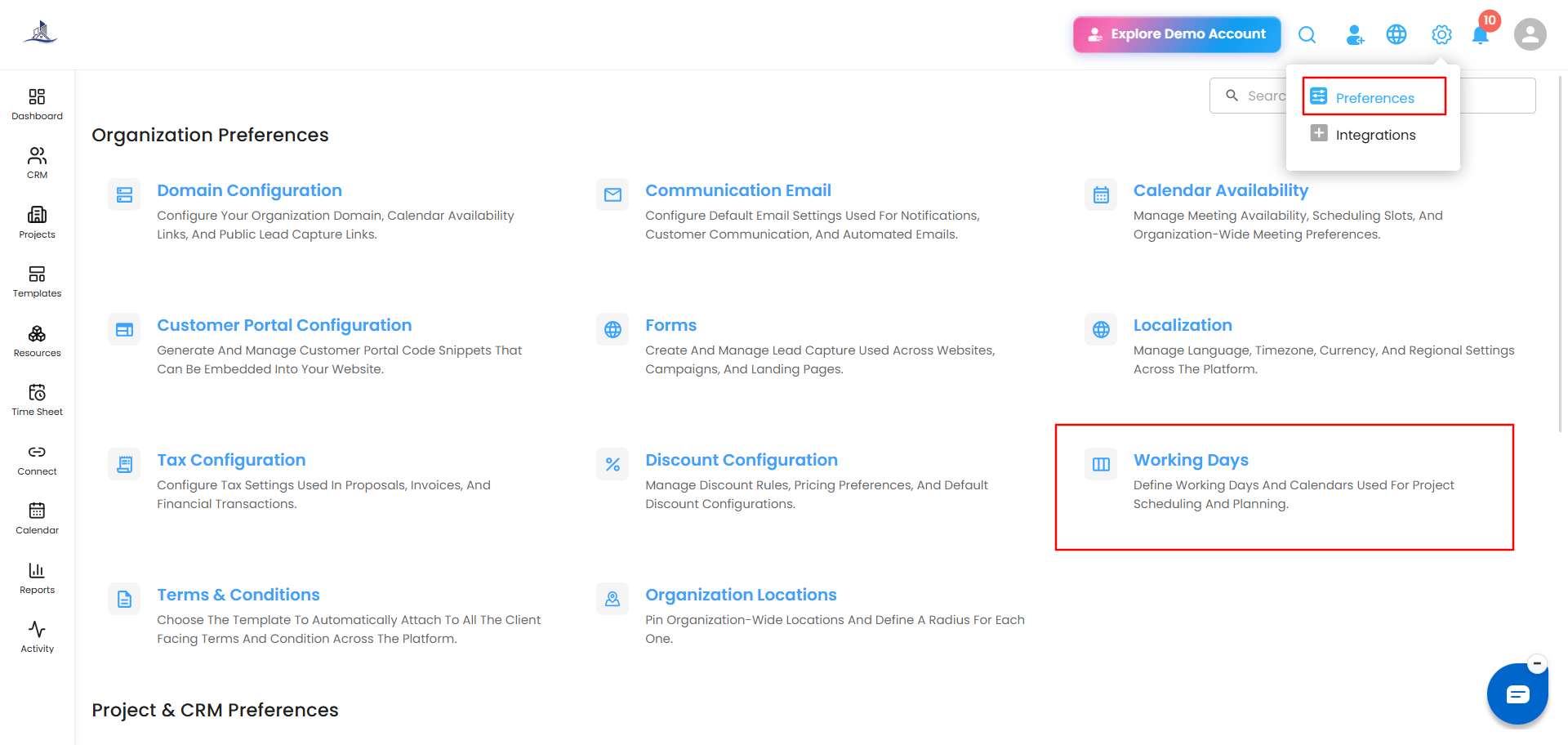
Click Settings (the gear icon) in the top right, select Preferences, then go to Working Days.
Setting Working Hours
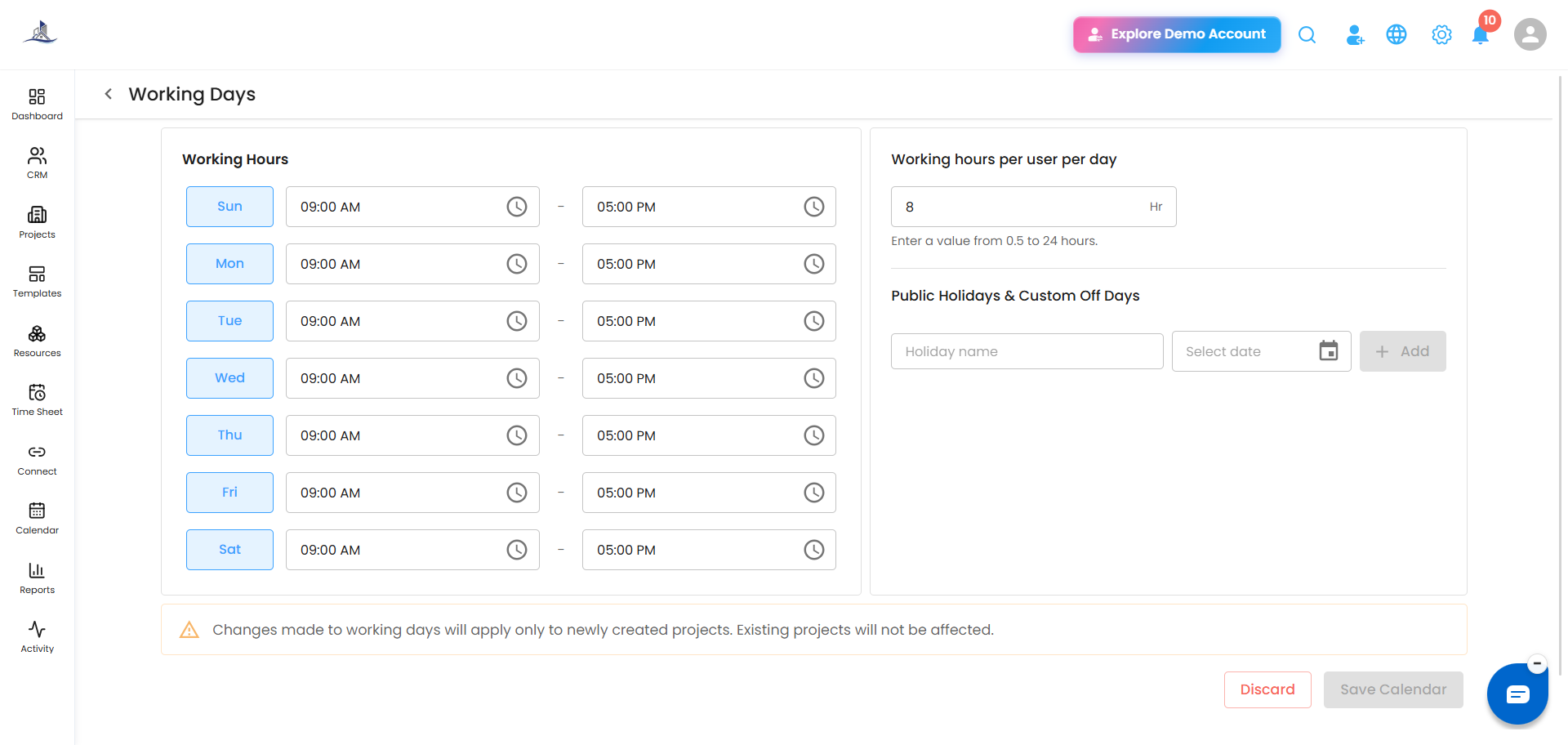
Under Working Hours, each day of the week (Sunday through Saturday) can be toggled on or off:
- Click a day to mark it as a working day — it highlights when selected.
- Set the start and end time for that day using the time fields.
Setting Working Hours Per User
Under Working hours per user per day, enter how many hours a single user is expected to work in a day - anywhere from 0.5 to 24 hours. This is used as the baseline when the system calculates workload and scheduling.
Adding Public Holidays and Custom Off Days
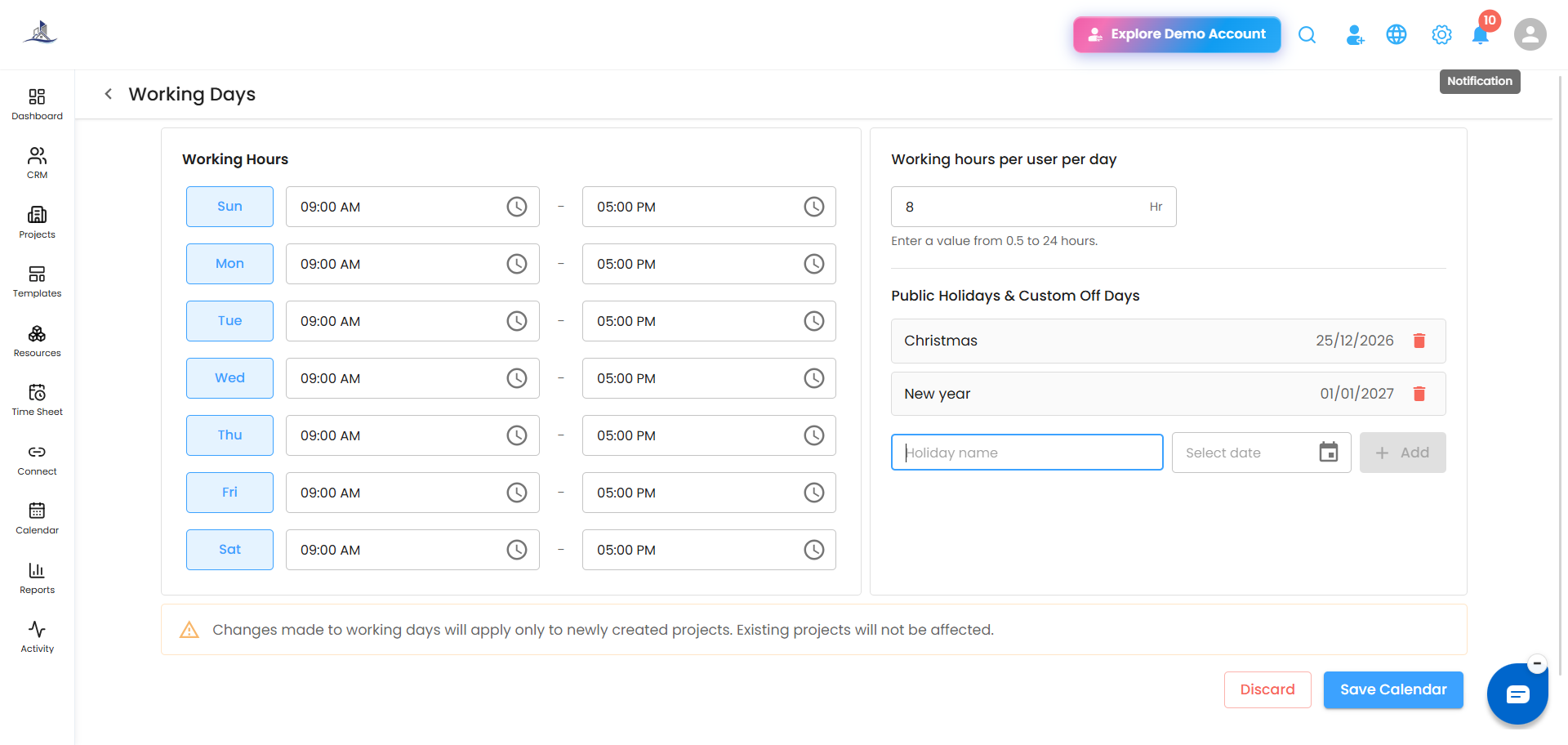
Under Public Holidays & Custom Off Days:
- Enter a Holiday name.
- Pick the date using Select date.
- Click + Add.
These dates are treated as non-working days across the organization's schedule, in addition to the weekly working days you've set.
Saving Your Changes
Click Save Calendar to apply your changes, or Discard to cancel them.
Was this article helpful?
That’s Great!
Thank you for your feedback
Sorry! We couldn't be helpful
Thank you for your feedback
Feedback sent
We appreciate your effort and will try to fix the article