Organization Locations - Setting Up Clock-In Locations
Overview
Organization Locations are the site or office locations your team is allowed to clock in and out from. Once set up here, they're used in the Time Sheet - when someone clocks in, the system checks their current position against these locations to confirm they're actually on-site.
Getting There
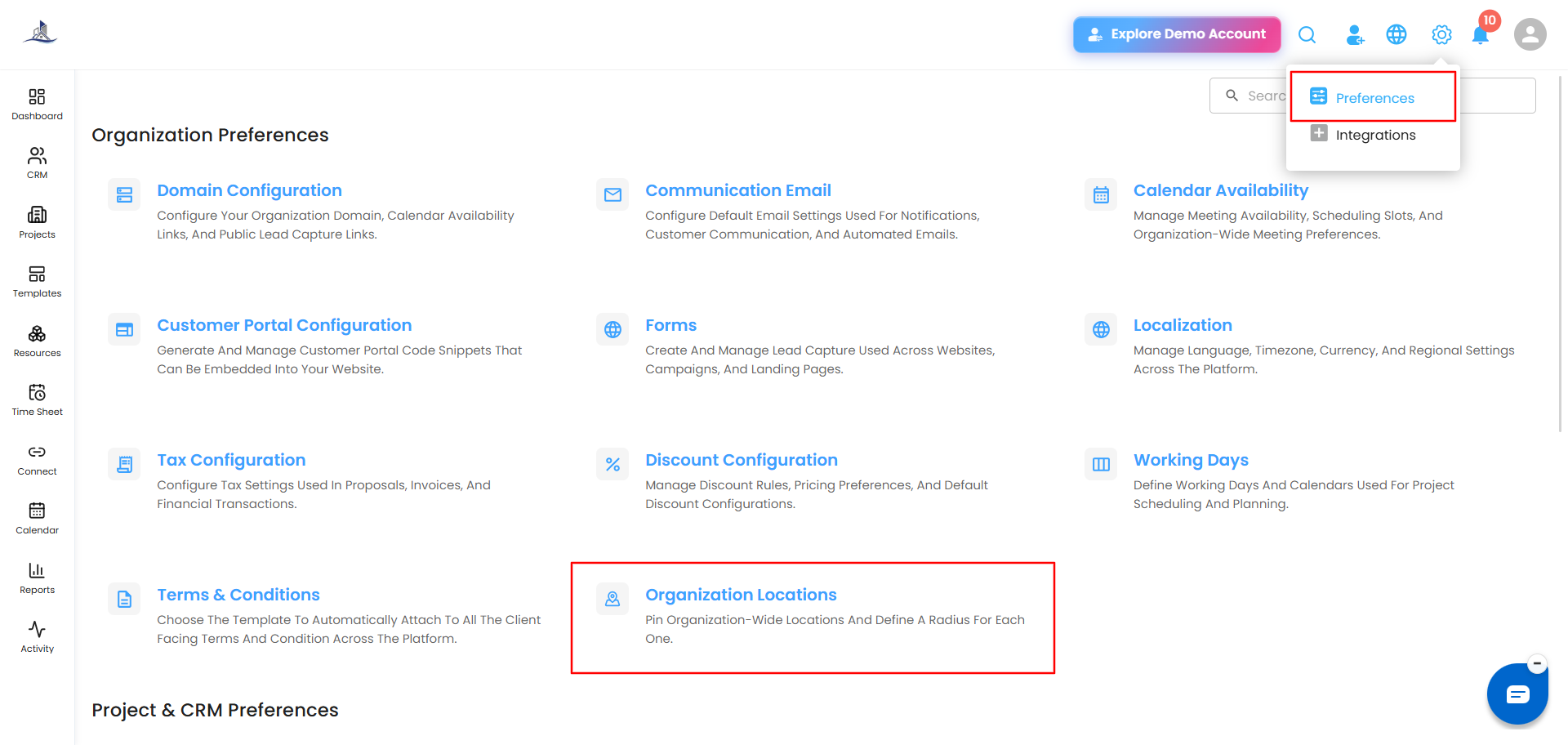
Click Settings (the gear icon) in the top right, select Preferences, then go to Organization Locations.
Adding a Location
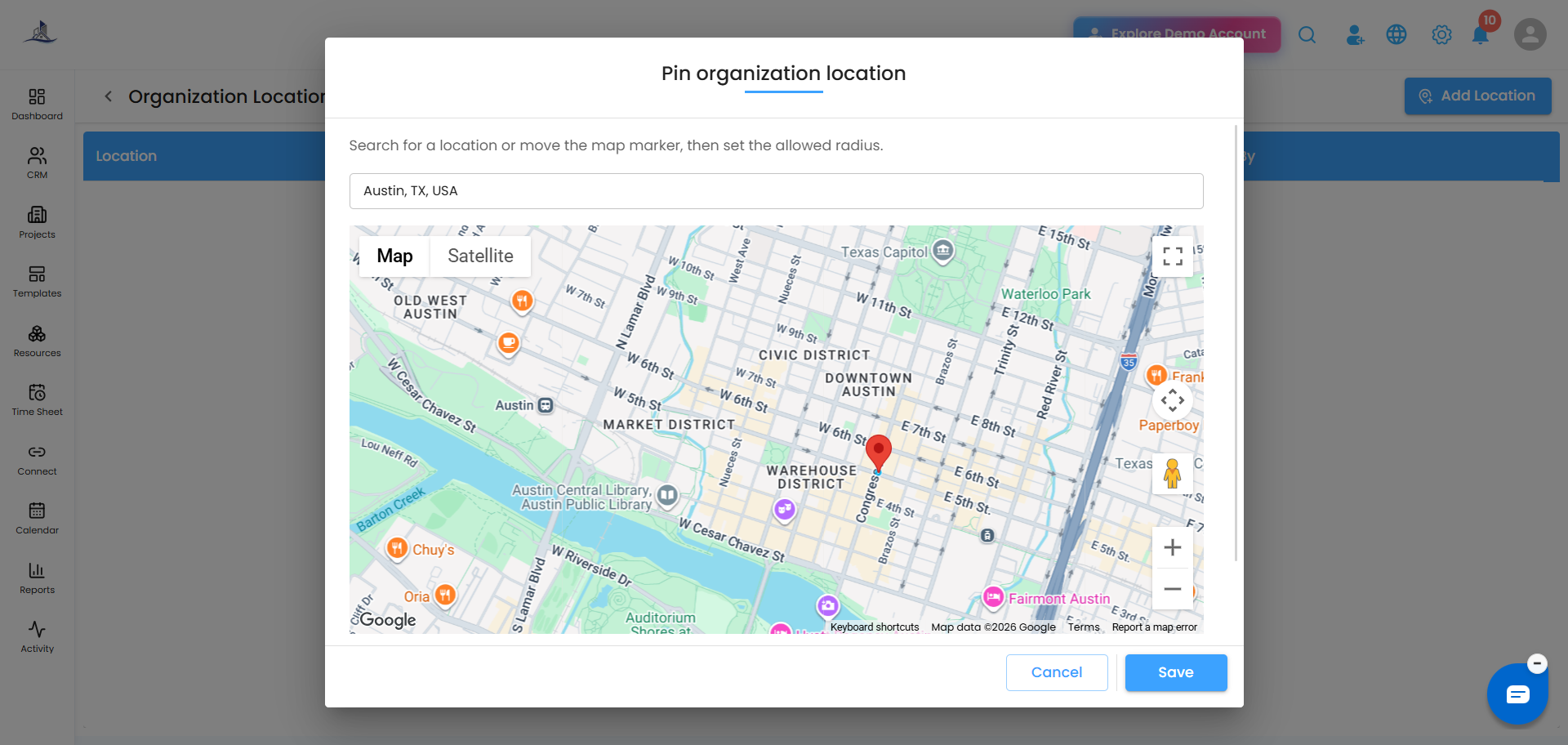
- Click Add Location in the top right.
- Search for the address, or move the map marker to pinpoint the exact spot.
- Set the Tracking radius (in meters) - this defines how close someone needs to be to this pin to count as "at" this location.
- Click Save.
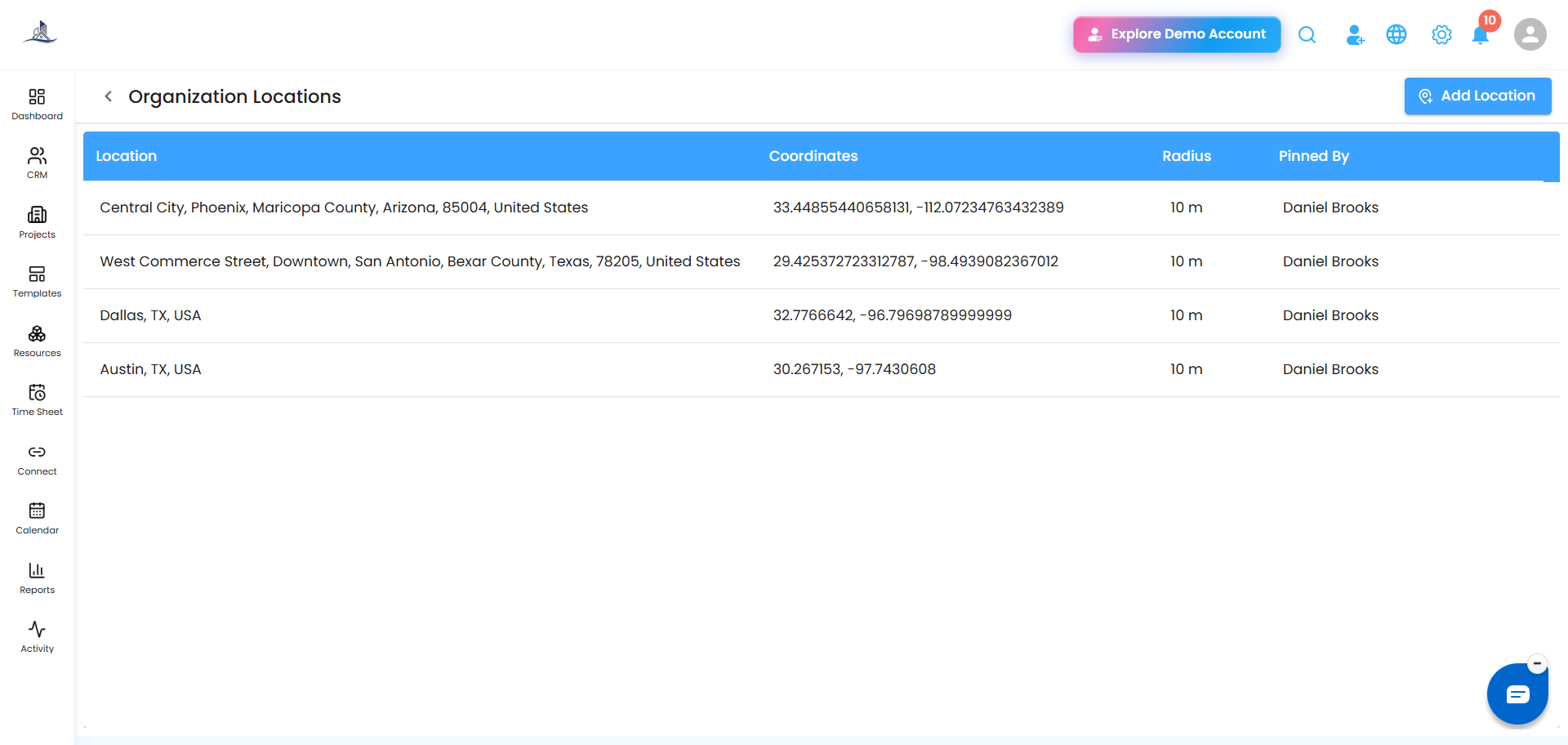
Once saved, the location appears in the table with its address, coordinates, radius, and who pinned it.
Deleting a Location
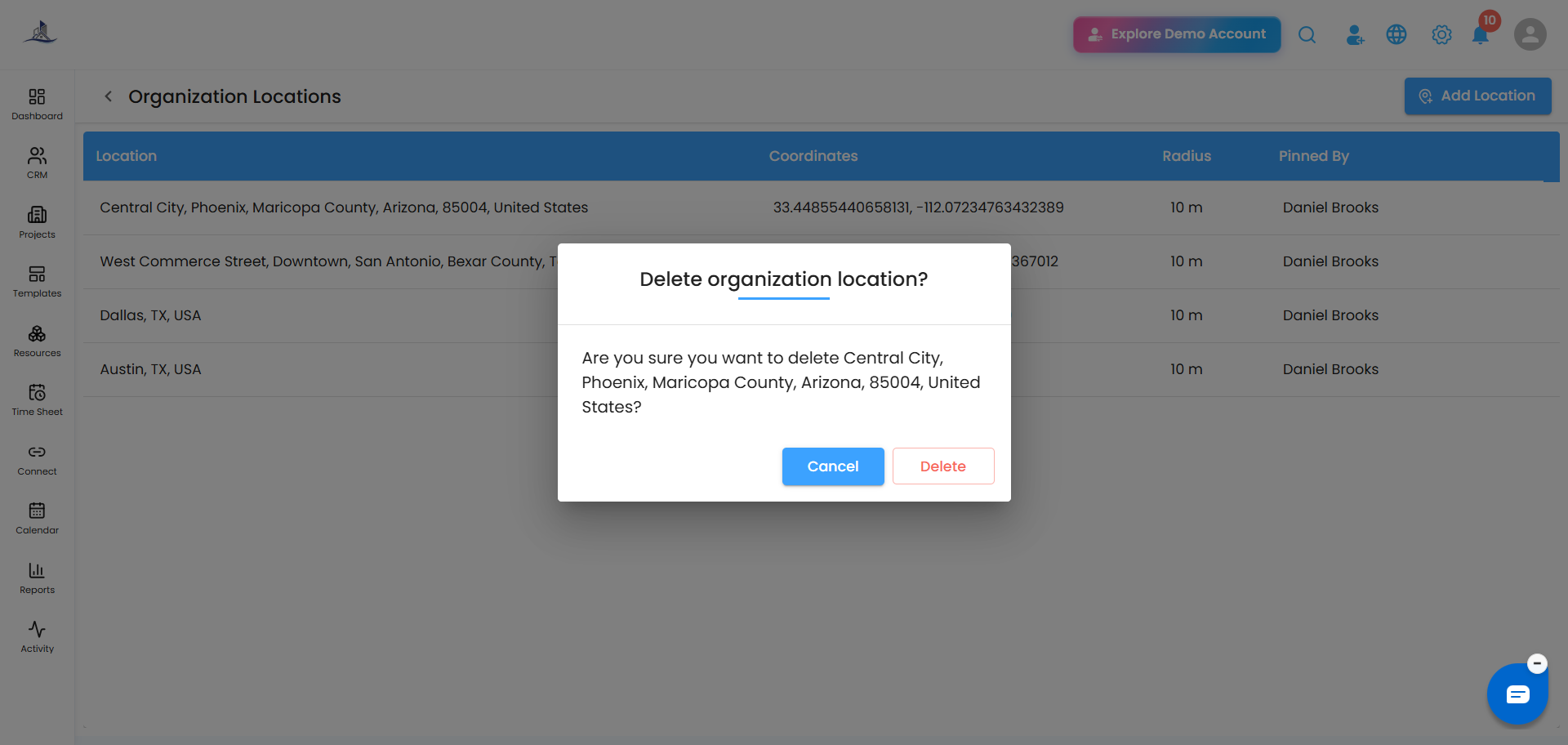
Click the delete option on a location row. You'll be asked to confirm before it's removed.
How This Shows Up at Clock-In
When someone clocks in from the Time Sheet, they're asked to select an organization location - but only locations that contain their current position are shown as available. If their device's location isn't detected, they'll see a message asking them to check their location settings and retry, with a shortcut to Add or edit organization locations right from that screen.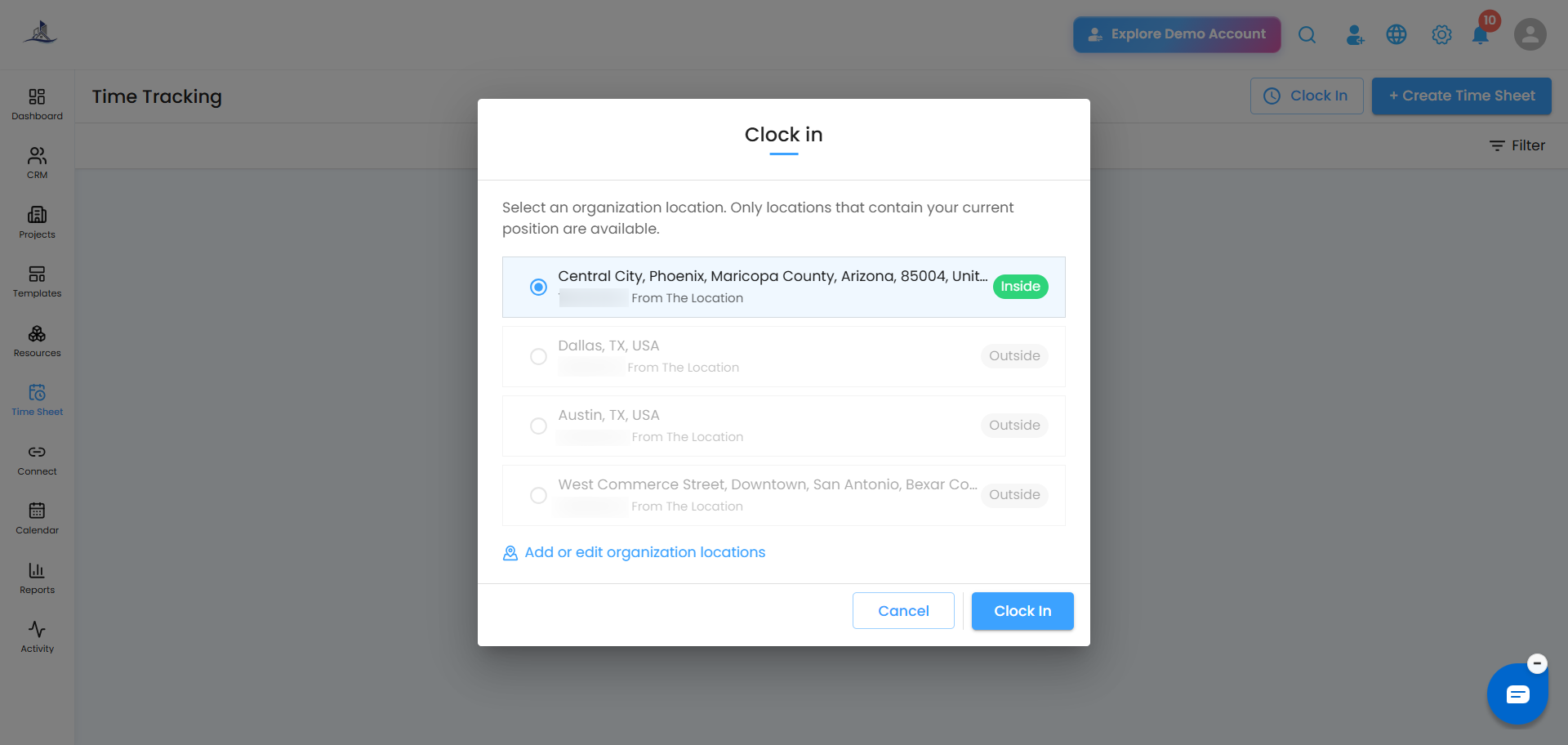
Was this article helpful?
That’s Great!
Thank you for your feedback
Sorry! We couldn't be helpful
Thank you for your feedback
Feedback sent
We appreciate your effort and will try to fix the article