If you quote similar work regularly, there is no reason to build the same estimate twice. Start from a template and your sections, line items and rates are already in place — you just adjust what is different about this job.
Before you start
Templates live in Template Center. Anything your team has built there is available to you here.
How to start from a template
Step 1 — Open the create flow
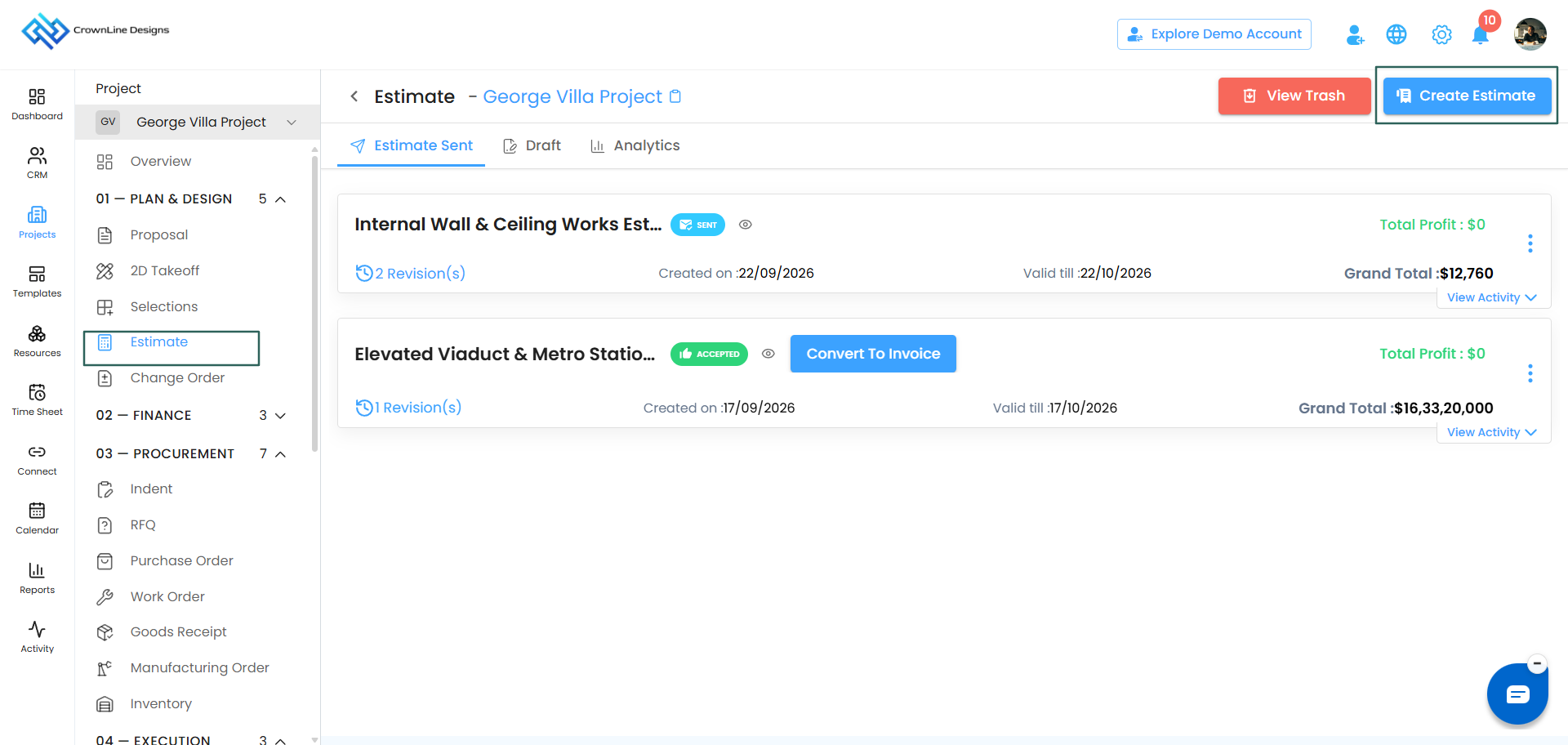
- Go to Clients, select your client, and open the Estimate card.
- Click Create Estimate.
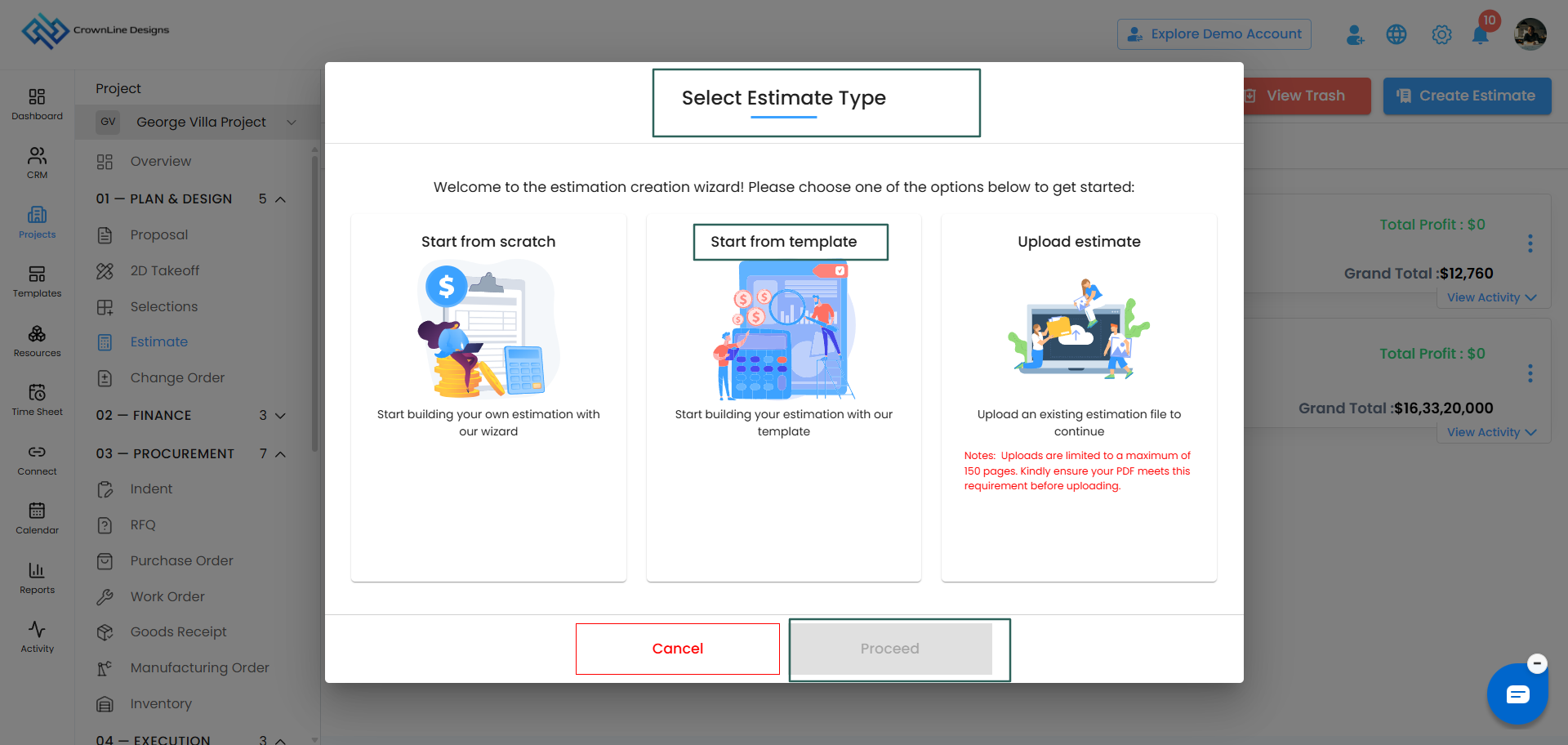
- In the Select Estimate Type popup, choose Start from Template.
- Click Proceed.
Step 2 — Choose your template
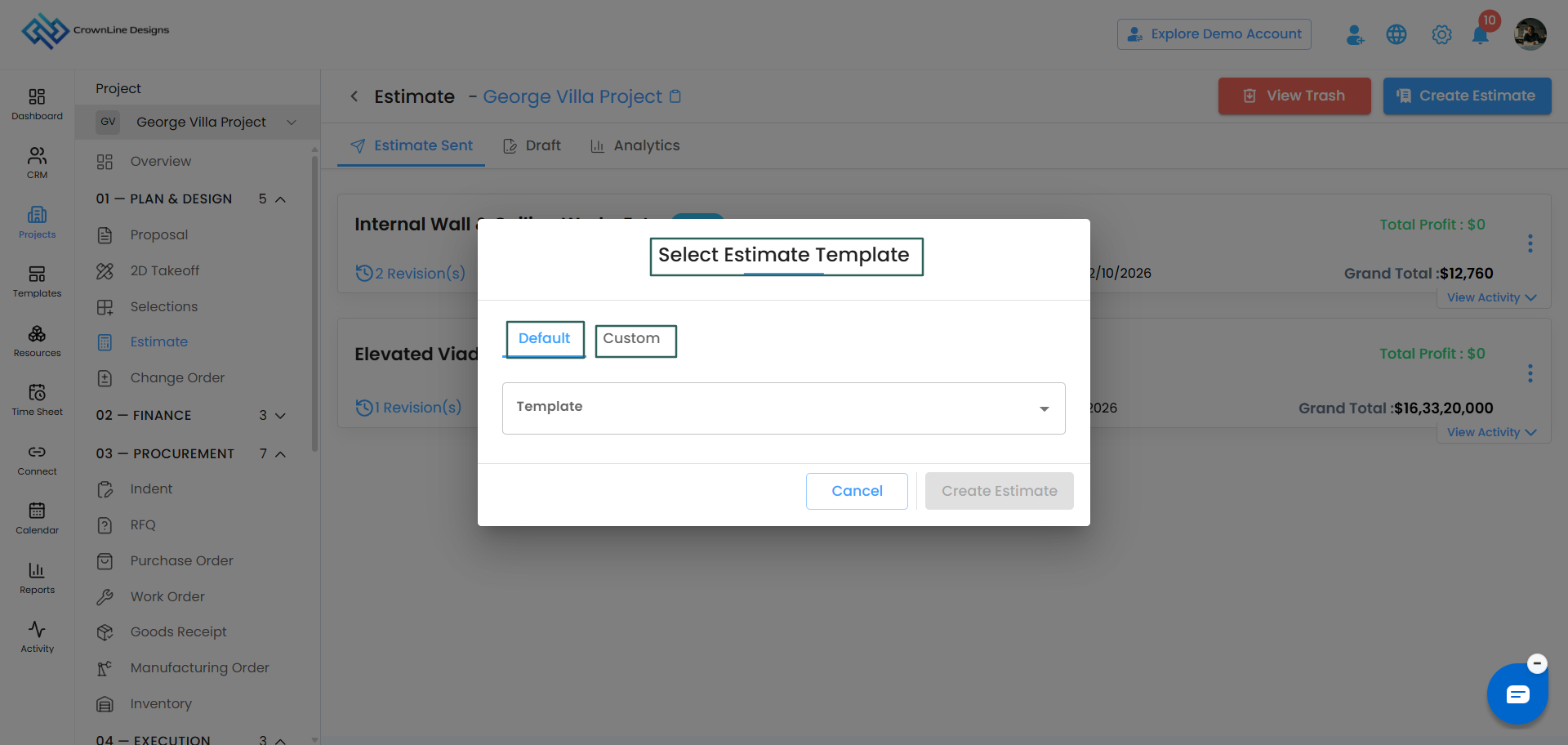
The Select Estimate Template popup opens with two tabs:
| Tab | What it holds |
|---|---|
| Default | Ready-made templates available to every workspace |
| Custom | Templates your own team has built in Template Center |
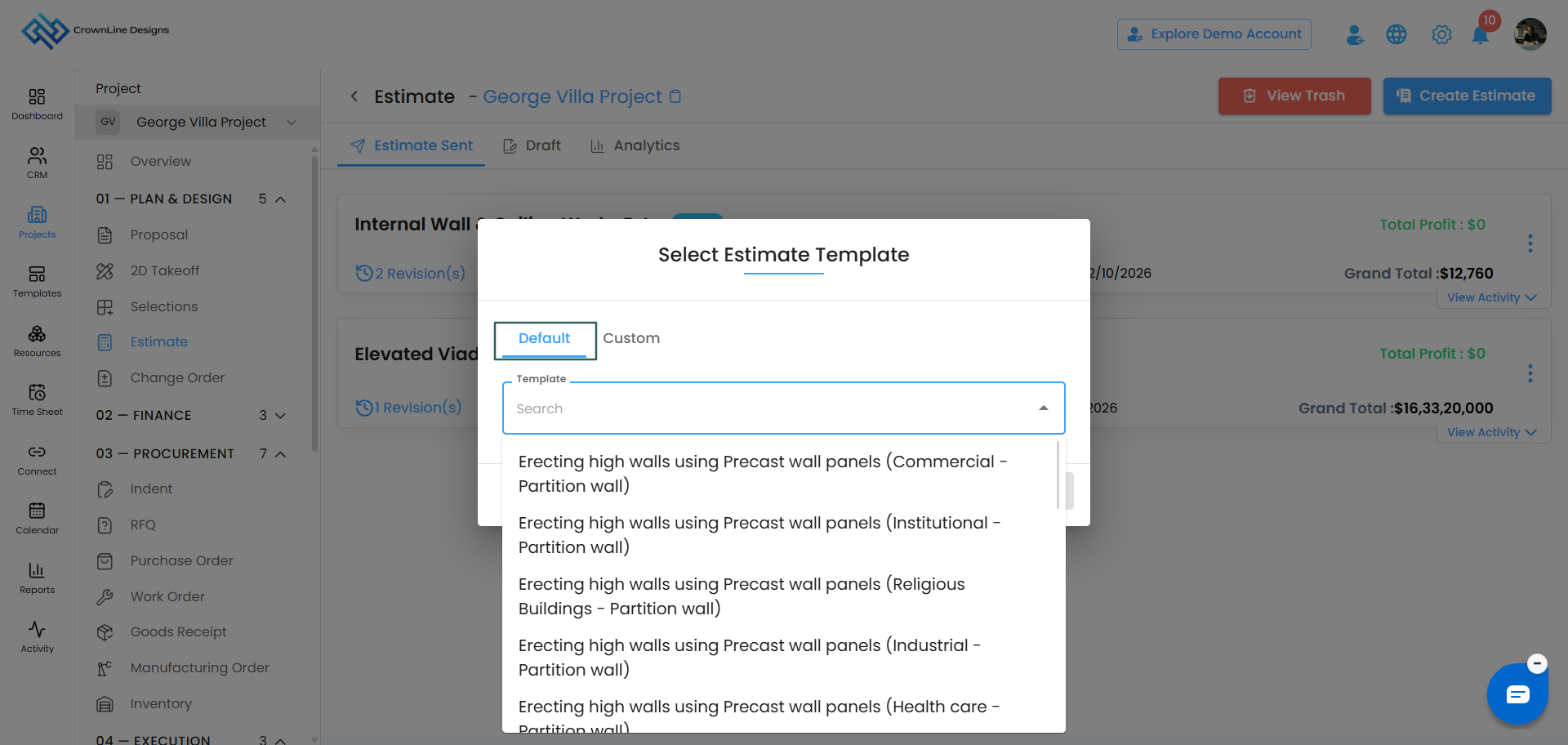
Browse either tab and select the template you want.
Step 3 — Create the estimate
With your template selected, click Create Estimate.
You land on the estimate create page with everything from the template already filled in.
What you can change
A template is a starting point, not a fixed form. Everything on the page is yours to edit:
- Header details — title, created on date, valid till date
- Sections and line items — rename them, remove what does not apply, reorder them by dragging
- Add more — click Add Manually for new line items, or Add from Catalog to pull in items from your Cost Catalog
- Materials — add or remove materials under any line item using its three-dot menu
- Quantities and rates — update everything to match this job
- Profit — as a percentage or a value
- Other charges, discount and tax
- Payment terms — set up the split for this client
- Attachments and terms and conditions
- Signatures — Show Admin Signature and Capture Image
Zyra is available here too, at the top of the table and on every section, line item and material.
Sending it
Exactly as you would any other estimate:
- Approvers — Compose Email, Send via WhatsApp or Send via SMS
- Creators — Request for Approval, and an approver sends it
When composing the email, choose Send as Estimate for line items only, or Send as BOQ to include the materials as well.
A tip on templates
If you find yourself making the same changes to a template every time you use it, that is a sign the template needs updating. Fix it once in Template Center and everyone on your team benefits.
Was this article helpful?
That’s Great!
Thank you for your feedback
Sorry! We couldn't be helpful
Thank you for your feedback
Feedback sent
We appreciate your effort and will try to fix the article