The Cost Catalog is your team's priced library. Instead of typing the same items and rates into every estimate, you build them once and pull them in whenever you need them.
Before you start
Your Cost Catalog is set up and maintained under Resources. Anything your team has added there is available to you here.
The two ways to fill a line item
On the estimate table you have two buttons:
| Button | What it does |
|---|---|
| Add Manually | You type the line item yourself |
| Add from Catalog | You pick from your Cost Catalog |
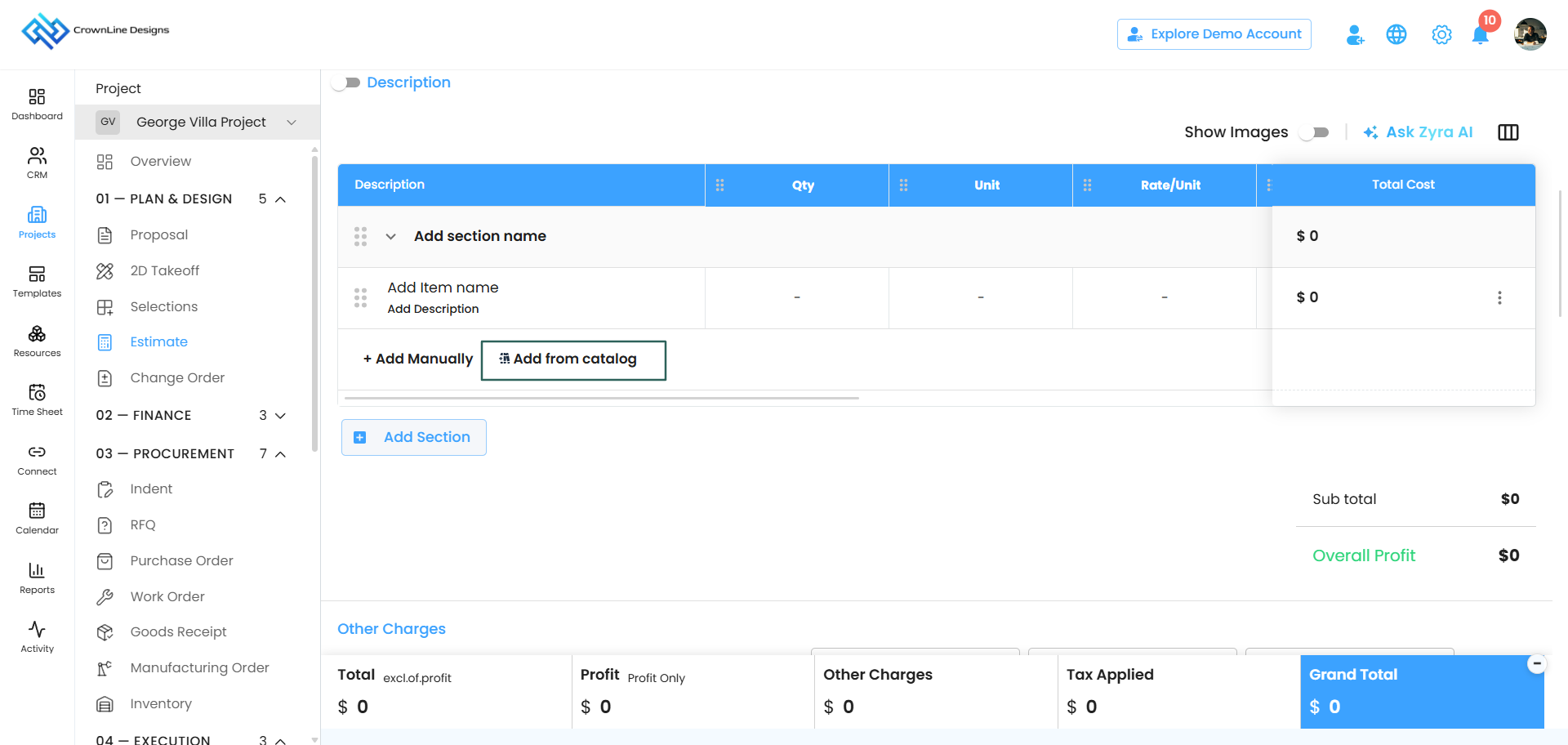
You can mix the two freely in the same estimate. Pull two line items from the catalog and type three more by hand — it makes no difference to the estimate.
What is in the Cost Catalog
Click Add from Catalog and the catalog opens with four tabs:
| Tab | What it holds |
|---|---|
| Materials | The materials your team has priced |
| Services | The services you provide |
| Equipment | Plant and equipment |
| Assemblies | Grouped items your team has built as a set |
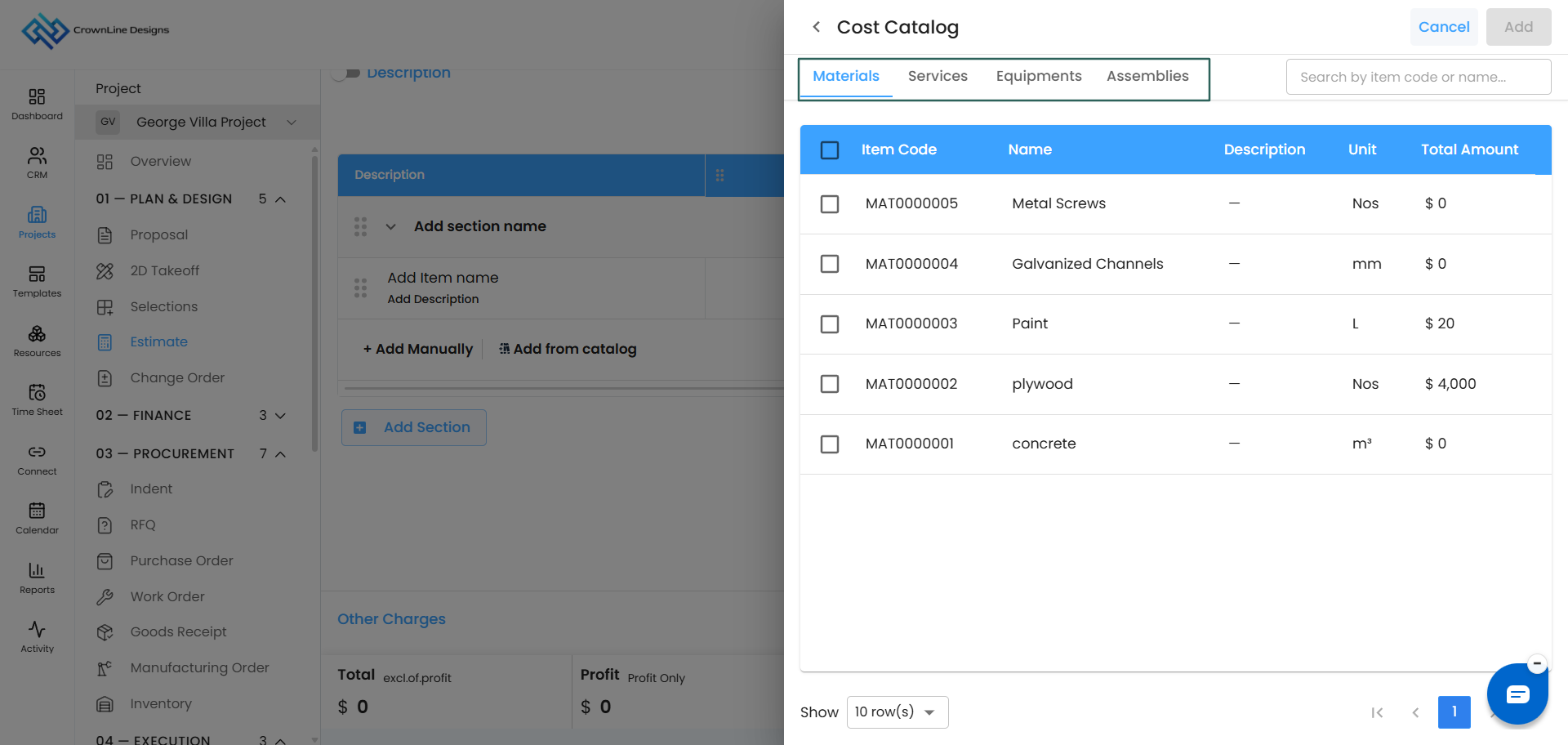
Everything your team has created under Resources appears in its matching tab.
How to add items
Step 1 — Open the catalog
From the estimate table, click Add from Catalog.
Step 2 — Select what you need
Browse the tabs and select your items. You can select across tabs in one go — one material, one service, one piece of equipment and one assembly, all in the same selection.
Take as many items from a tab as you need.
Step 3 — Add them
Add your selection and the items come into your estimate as line items.
After you have added them
Catalog items behave exactly like any other line item once they are in your estimate:
- Edit the details — adjust quantity, unit, rate, profit and tax for this particular job
- Add a description on the line item
- Add materials underneath using the line item's three-dot menu
- Drag the line item within its section or into a different section
- Remove it if you change your mind
Zyra is available on catalog items too. Use Rate Analysis to check the catalog price is still competitive, or Budget-Friendly Options if your client is pushing on cost.
Editing the catalog itself
Changing a rate on an estimate changes it only on that estimate. The Cost Catalog is not affected.
To change an item permanently for everyone, edit it under Resources. That is where the catalog is maintained.
Getting the most out of it
- Keep it current. A catalog with last year's rates costs you money on every estimate that uses it.
- Use assemblies for repeat work. If you always quote the same group of items together, build it once as an assembly and pull it in as a set.
- Be consistent with naming. Clear, consistent names make the catalog quick to search when you are mid-estimate.
Was this article helpful?
That’s Great!
Thank you for your feedback
Sorry! We couldn't be helpful
Thank you for your feedback
Feedback sent
We appreciate your effort and will try to fix the article