Overview
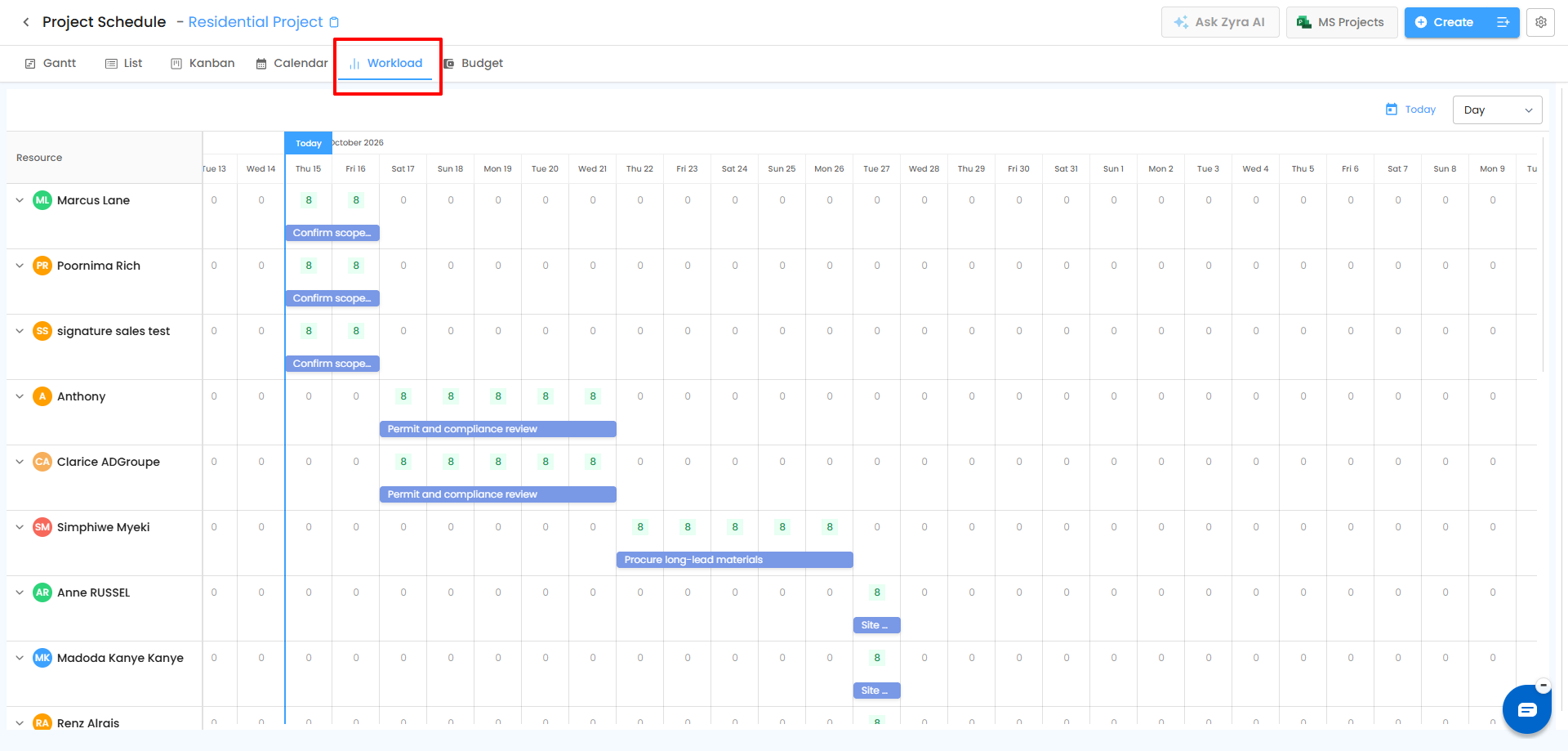
The Workload View helps project managers monitor team capacity, track daily allocations, and balance workloads across schedules. It shows assigned working hours on a timeline so you can spot available team members and prevent over-allocation.
Where to Find It
- Open the required project and go to Schedule.
- Click the Workload tab.
- Review the grid of team members' daily allocations.
Note: If Planner is enabled in Schedule Settings, the Planner tab replaces the Workload tab.
Understanding the Workload Grid
| Element | Description |
|---|---|
| Resource List | Organization users or team members assigned to project work. |
| Expand / Collapse | Click the arrow beside a name to show or hide their assigned schedules. |
| Daily Allocation Grid | Hours allocated to each member for each day. |
| Daily Workload Summary | Total hours allocated across all of a member's schedules for each day. |
How working capacity is calculated
- Organization Working Hours – the daily working capacity configured for workers.
- Project Working Hours – the working time window for project activities.
For example, with a 6-hour daily capacity, a member assigned 6 hours has reached their limit.
How Work Is Allocated
When several workers are assigned to one schedule, the scheduled hours are divided equally. For a schedule needing 6 working hours per day:
| Workers | Hours per worker per day |
|---|---|
| 1 | 6 |
| 2 | 3 |
| 3 | 2 |
| 4 | 1.5 |
The schedule's planned start and end dates do not change. For schedules that start or end partway through a day, hours may be prorated. For example, 2:44 PM to 4:00 PM is 1 hour 16 minutes, about 1.27 hours.
Workload Colors
| Color | Meaning |
|---|---|
| Green | Within capacity: assigned hours are within or equal to daily capacity. |
| Red | Overloaded: assigned hours exceed daily capacity. Review and redistribute work. |
| Light / White | Available capacity: the member can take on more work. |
Example (6-hour capacity): two 3-hour schedules total 6 hours, so the cell is within capacity. Adding a 1-hour schedule makes 7 hours, which exceeds it.
How to Edit Daily Workload Hours
- Expand the team member's row.
- Find the schedule or task row.
- Click the daily cell you want to change.
- Enter the new hours.
- Press Enter or click outside the cell to save.
Important notes
- Editing a cell changes the allocation for that day and member only.
- It does not change the schedule's planned start date, end date, or duration.
- If the new total exceeds capacity, the summary cell shows the overload indicator.
Frequently Asked Questions
Why is a cell red when the member has only one schedule?Their daily allocation may exceed configured capacity. Check the hours on that schedule and any other allocation for the same day.
Does changing workload hours change the project timeline?No. Only the allocation for the selected day and member changes.
What happens when a member is removed from a shared schedule?The allocation may be redistributed among the remaining assignees. The planned duration remains unchanged.
Related Articles
- Setting Off-Days & Working Hours
- Schedule Multiple Views
- Schedule Settings – Configure Your Project
Need Further Assistance?
If you notice unexpected workload allocations or capacity warnings, contact your organization administrator or the IntoAEC support team.
Was this article helpful?
That’s Great!
Thank you for your feedback
Sorry! We couldn't be helpful
Thank you for your feedback
Feedback sent
We appreciate your effort and will try to fix the article