Overview
Schedule Settings control how progress is tracked, how checklist items are completed, and whether the Planner feature is enabled. You can set them for one project, or define organization-level defaults for upcoming projects.
Where to Find Schedule Settings
Project level
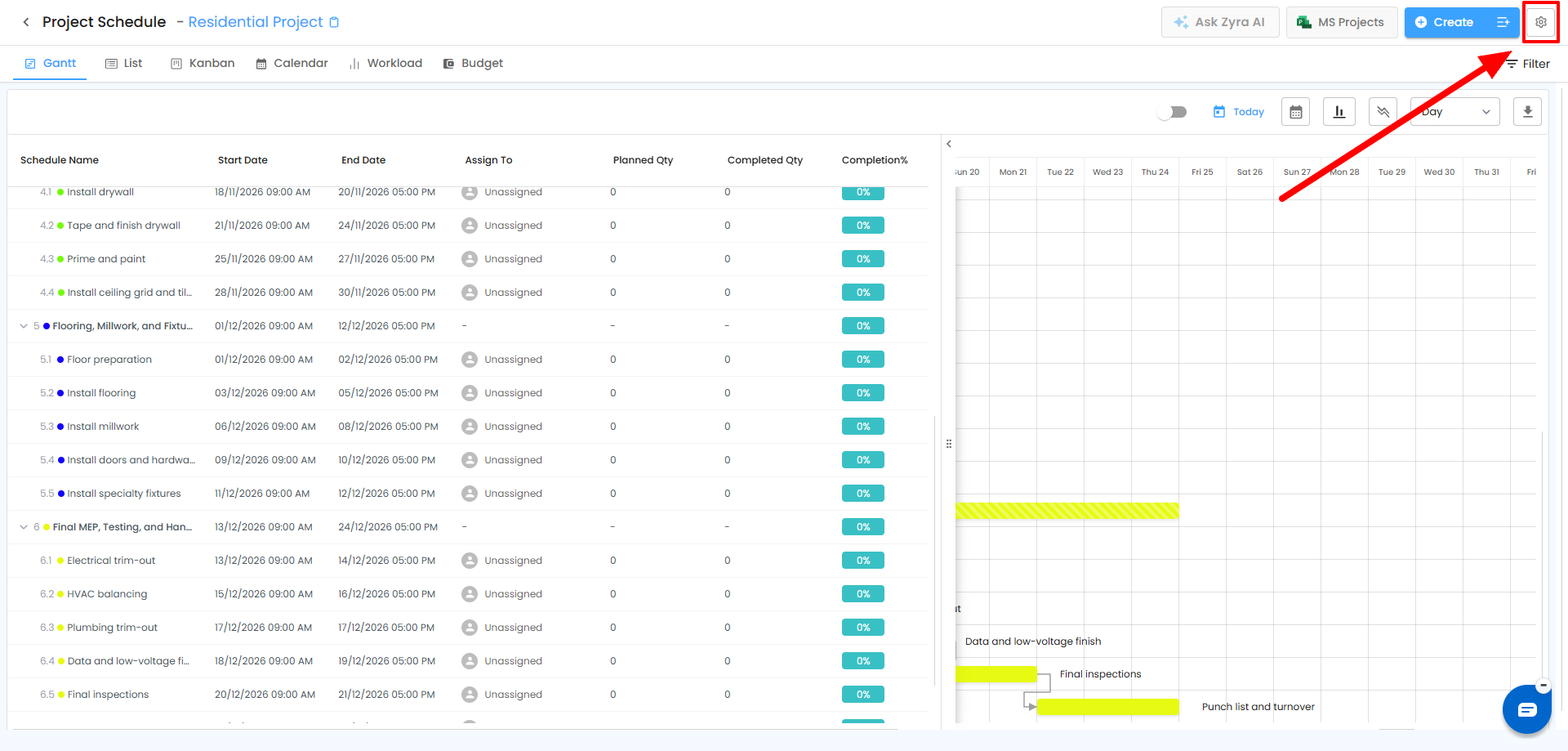
- Open the required project and go to Schedule.
- Open Schedule Settings.
- Configure the options.
- Click Save.
Organization level
- Go to Settings → Preferences.
- Open the organization's Schedule Settings.
- Configure the default settings.
Organization-level settings apply to upcoming new projects. Project-level settings override the organization defaults for that project.
What You Can Configure
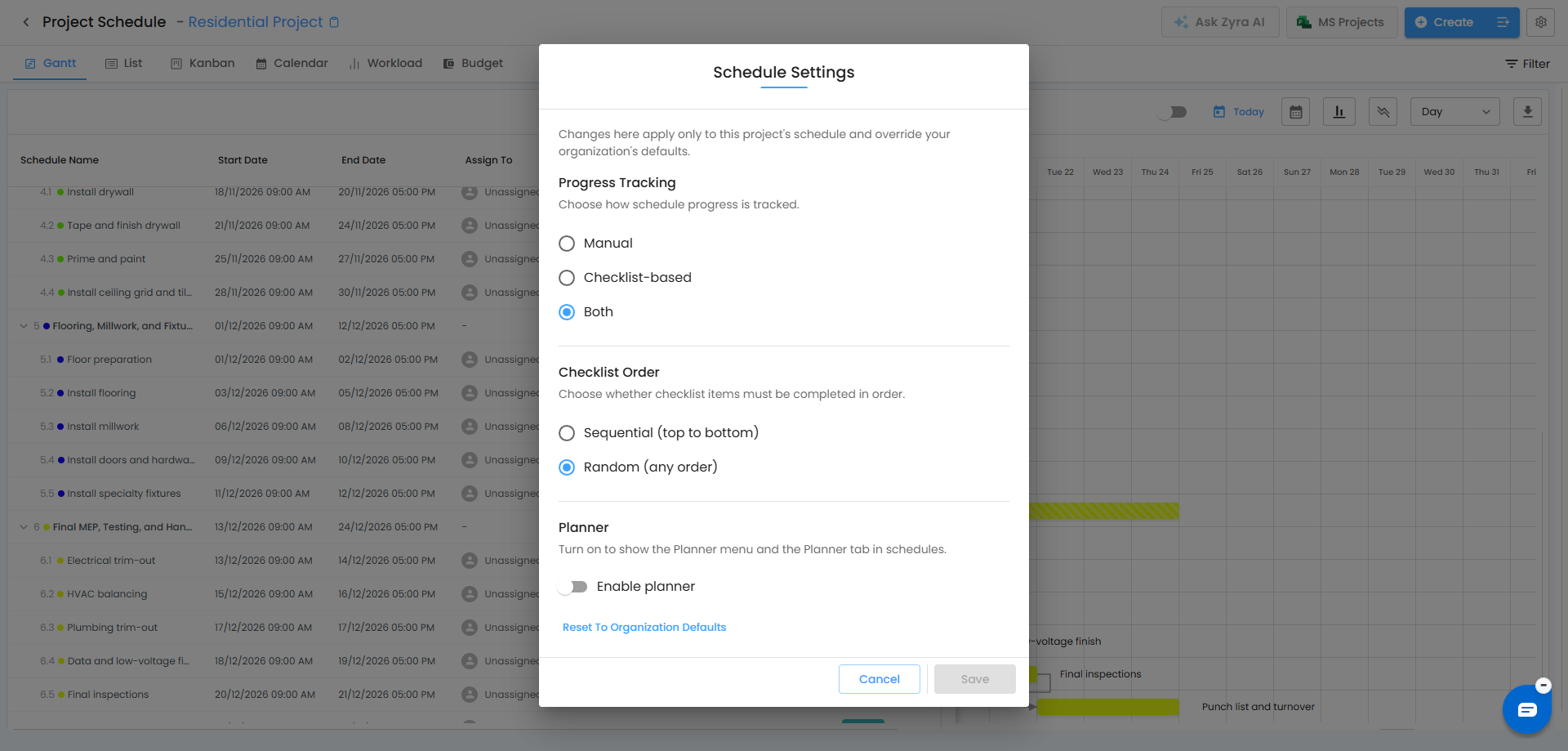
1. Progress Tracking
| Option | How progress is tracked |
|---|---|
| Manual | You update progress manually. |
| Checklist-based | Progress follows completion of checklist items. |
| Both | Manual and checklist-based tracking are used together. |
2. Checklist Order
| Option | Behavior |
|---|---|
| Sequential (top to bottom) | Items must be completed in the displayed order. |
| Random (any order) | Items can be completed in any order. |
3. Planner
Turn on Enable planner to activate the Planner feature. When enabled:
- The Workload tab is replaced by the Planner tab.
- You can manage project-level materials, resources, quantities, and assets.
- Individual schedules (except milestones) support Material, Resource, and Quantity Planners.
⚠️ Important: Changing Planner on an Existing Project
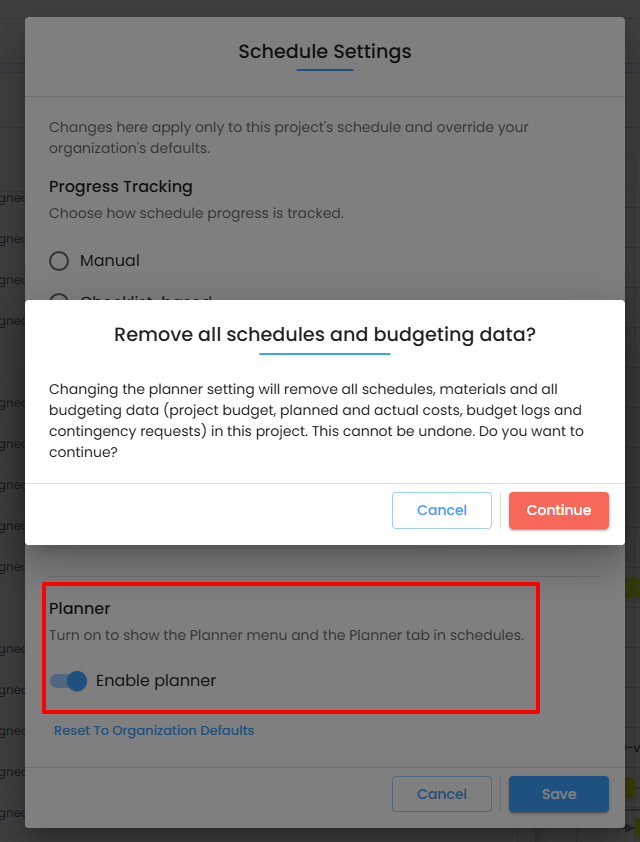
If you enable or change the Planner setting on an existing project, a confirmation message appears: "Remove all schedules and budgeting data?"
Changing it removes all schedules, materials, and budgeting data in the project, including project budget, planned and actual costs, budget logs, and contingency requests. This cannot be undone.
Record any information you need before confirming.
Key Points
- Organization settings are defaults for new projects only.
- Project settings override organization defaults.
- Changing Planner on an existing project can permanently delete schedule and budgeting data.
Related Articles
- Schedule Planner – Plan Materials, Resources, Quantities, and Assets
- How to Create a Schedule
- Workload
Need Further Assistance?
If you need help configuring Schedule Settings or understanding how Planner mode affects an existing project, contact your organization administrator or the IntoAEC support team.
Was this article helpful?
That’s Great!
Thank you for your feedback
Sorry! We couldn't be helpful
Thank you for your feedback
Feedback sent
We appreciate your effort and will try to fix the article