Overview
The Schedule Planner helps you plan and manage the materials, resources, quantities, and assets needed to complete project activities. You can manage planning details for each schedule, and see consolidated information for the whole project from the main Planner tab. It also connects schedules with shifts, attendance, and timesheets to support execution and cost tracking.
Note: The Planner tab appears only when Planner mode is enabled in Schedule Settings, where it replaces the Workload tab. See Schedule Settings – Configure Your Project.
Where to Find the Planner
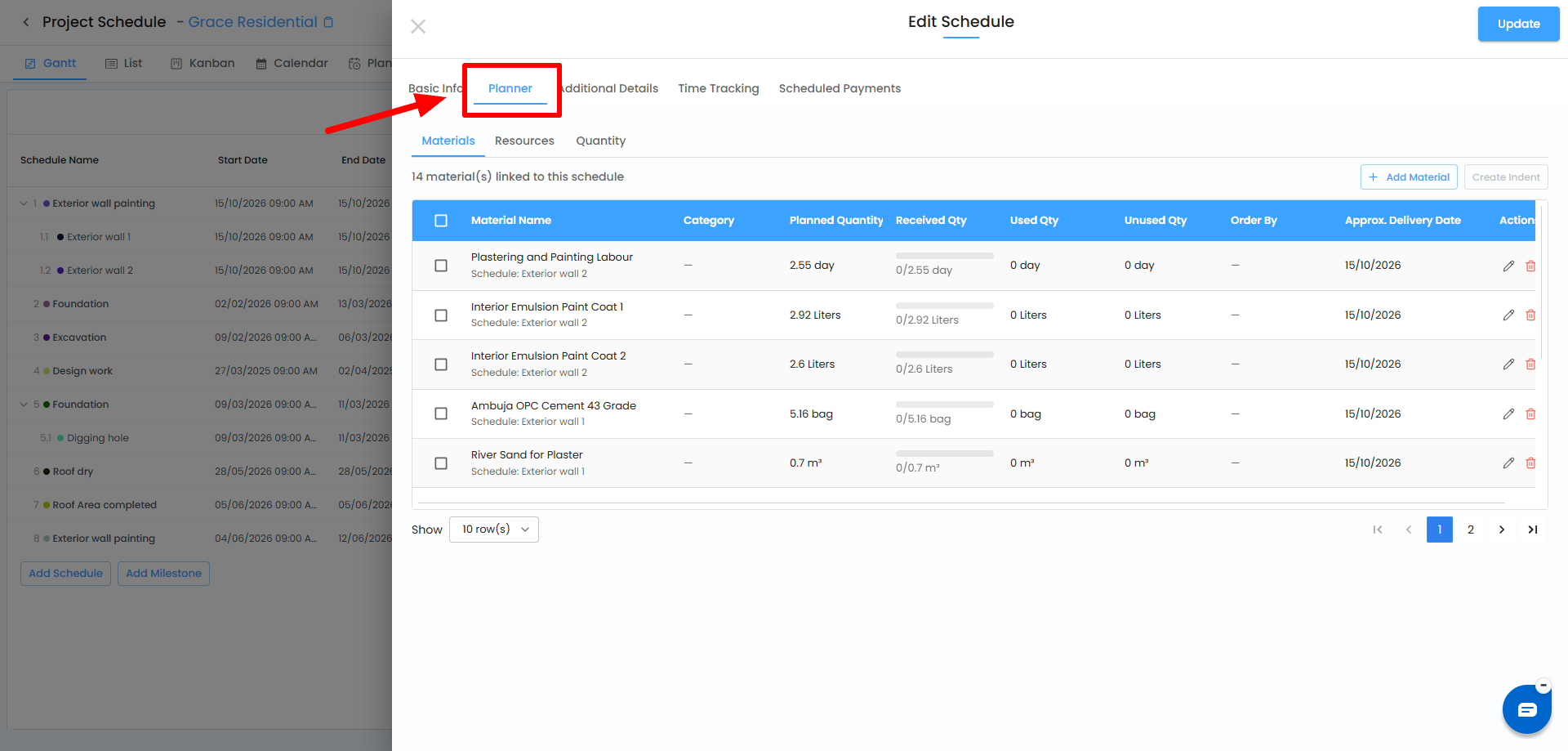
From an individual schedule
- Open the project and go to Schedule.
- Find the schedule or child schedule.
- Open its action menu and click Edit.
- Click the Planner tab.
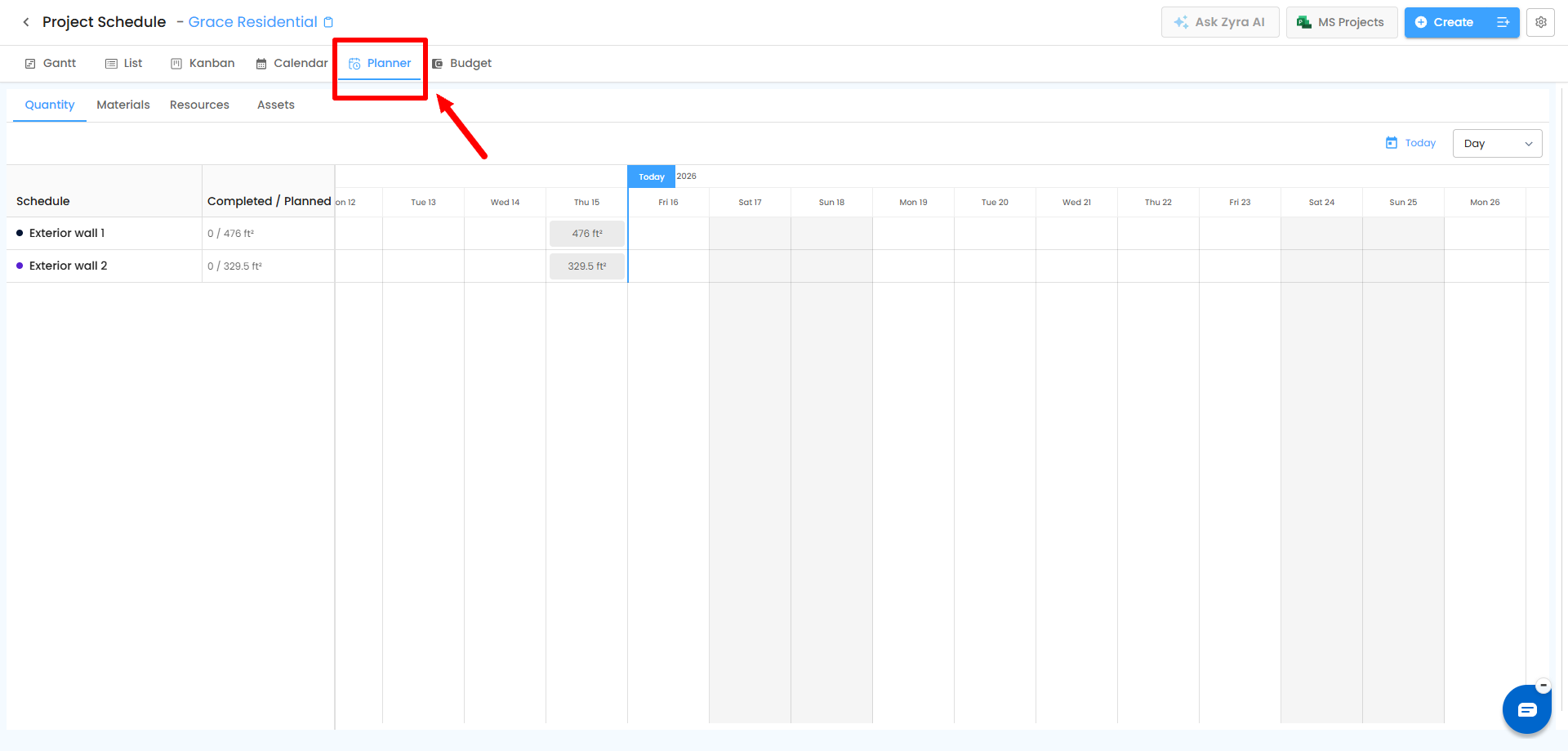
From the Schedule header
- Open the project's Schedule module.
- Click the Planner tab in the header.
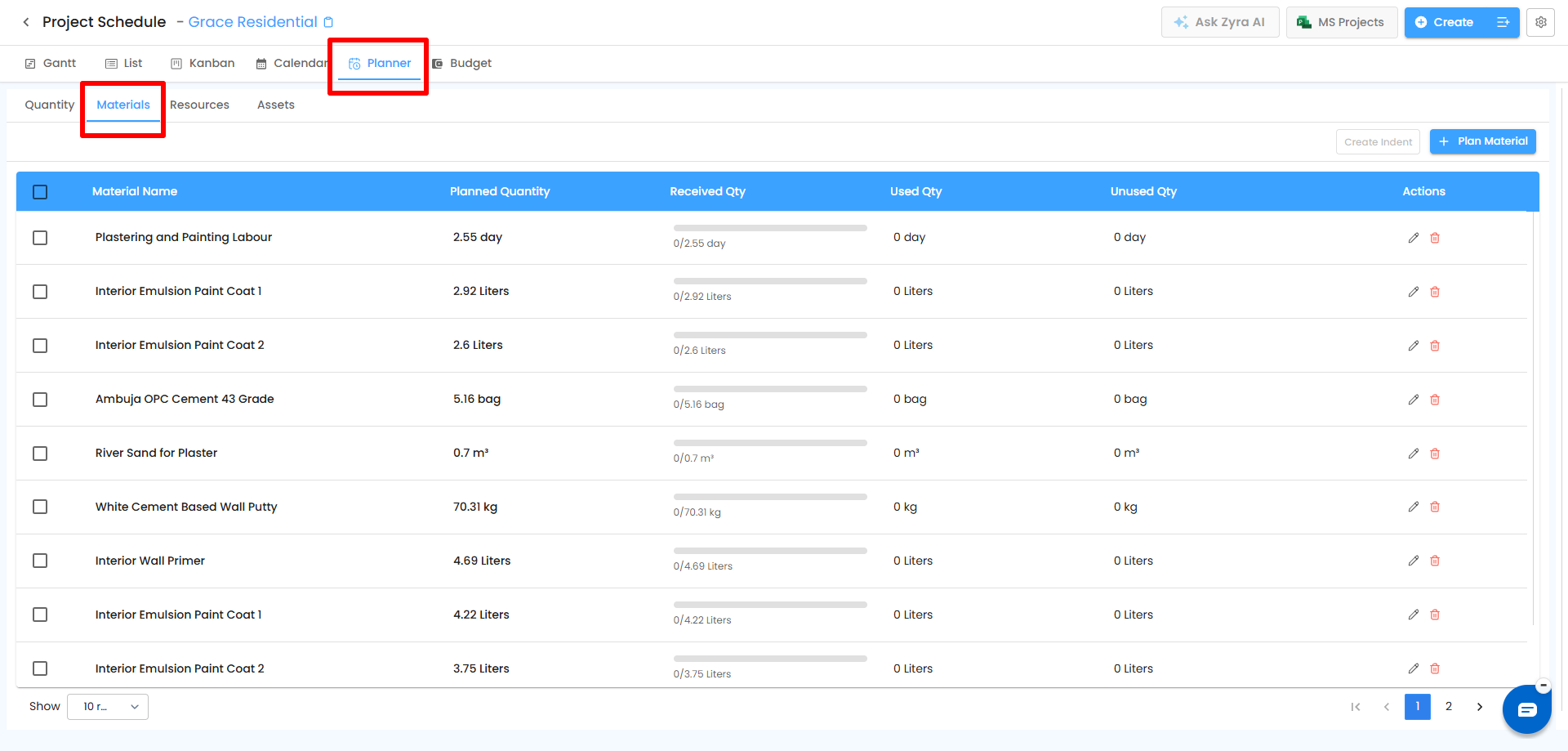
1. Material Planner
Manage the materials a schedule needs and track quantities during execution.
Add materials
| Method | How it works |
|---|---|
| From an estimate | When a schedule is created by converting an estimate, materials from the estimate's line items are fetched into the Material Planner. |
| From the Cost Catalog | Select existing materials from the catalog. |
| Create a new material | Add a material that is not in the Cost Catalog. |
What you can track
| Field | Description |
|---|---|
| Material Name | Name of the material. |
| Category | Category assigned. |
| Planned Qty | Quantity planned for the schedule. |
| Received Qty | Quantity received. |
| Used Qty | Quantity consumed. |
| Unused Qty | Remaining quantity. |
| Ordered By | User associated with the order. |
| Approx. Delivery Date | Expected delivery date. |
Each material has an action menu with Edit and Delete.
Create an indent
- Open the schedule's Planner tab.
- Select the checkboxes beside the materials you need.
- Use the indent creation action.
- Complete the indent creation process.
You can select multiple materials for one indent. After adding materials, update the Used Qty to track usage.
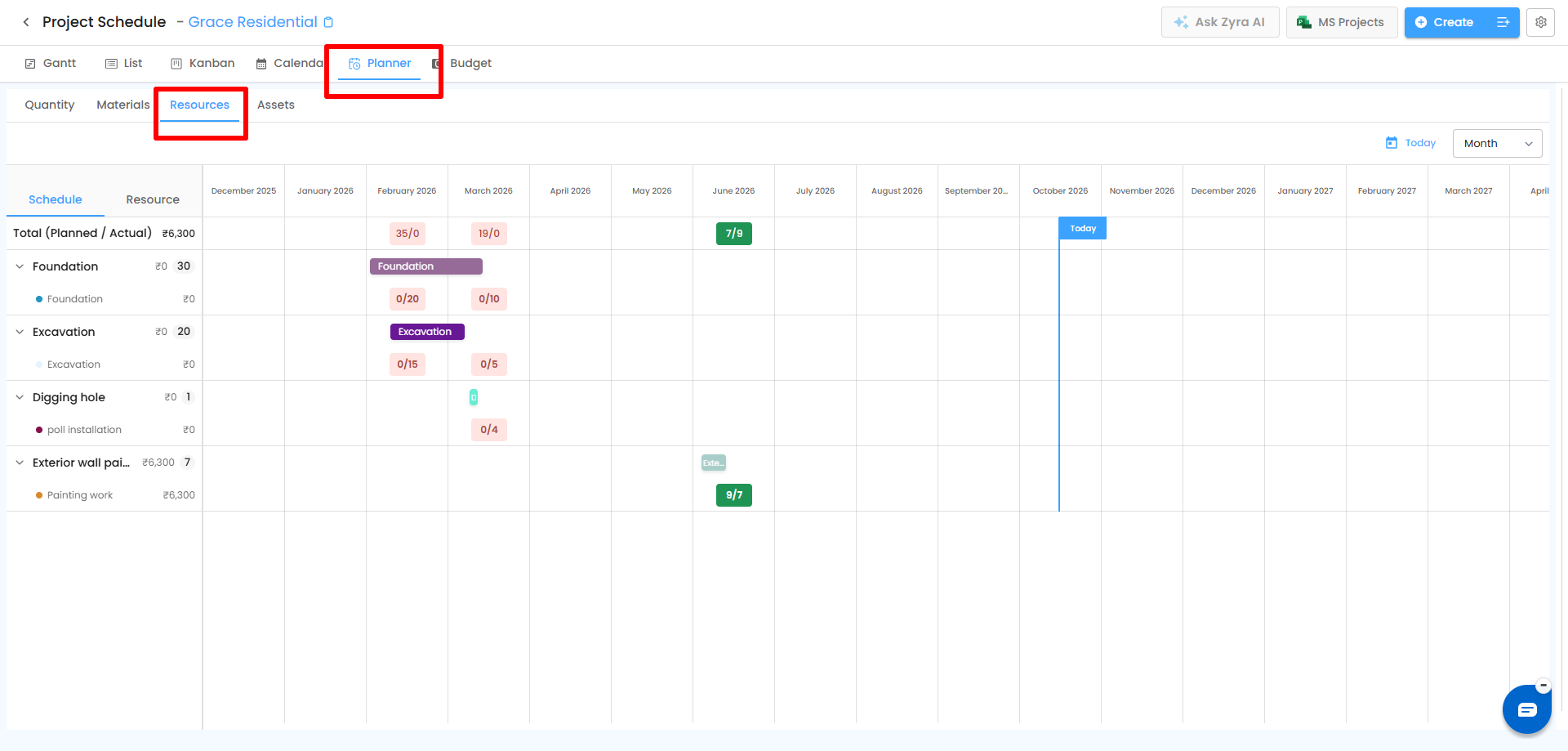
2. Resource Planner
Manage workers and link their shifts to a schedule.
- Link an existing shift to the schedule through the Resource Planner and shift-management workflow.
- Create a shift from the schedule and add the required workers.
- Automatic shift creation: when a schedule is created or updated with an assignee for the schedule period, a shift can be created automatically using the schedule name and linked to it.
- Mark attendance for workers on the linked shift from the schedule workflow.
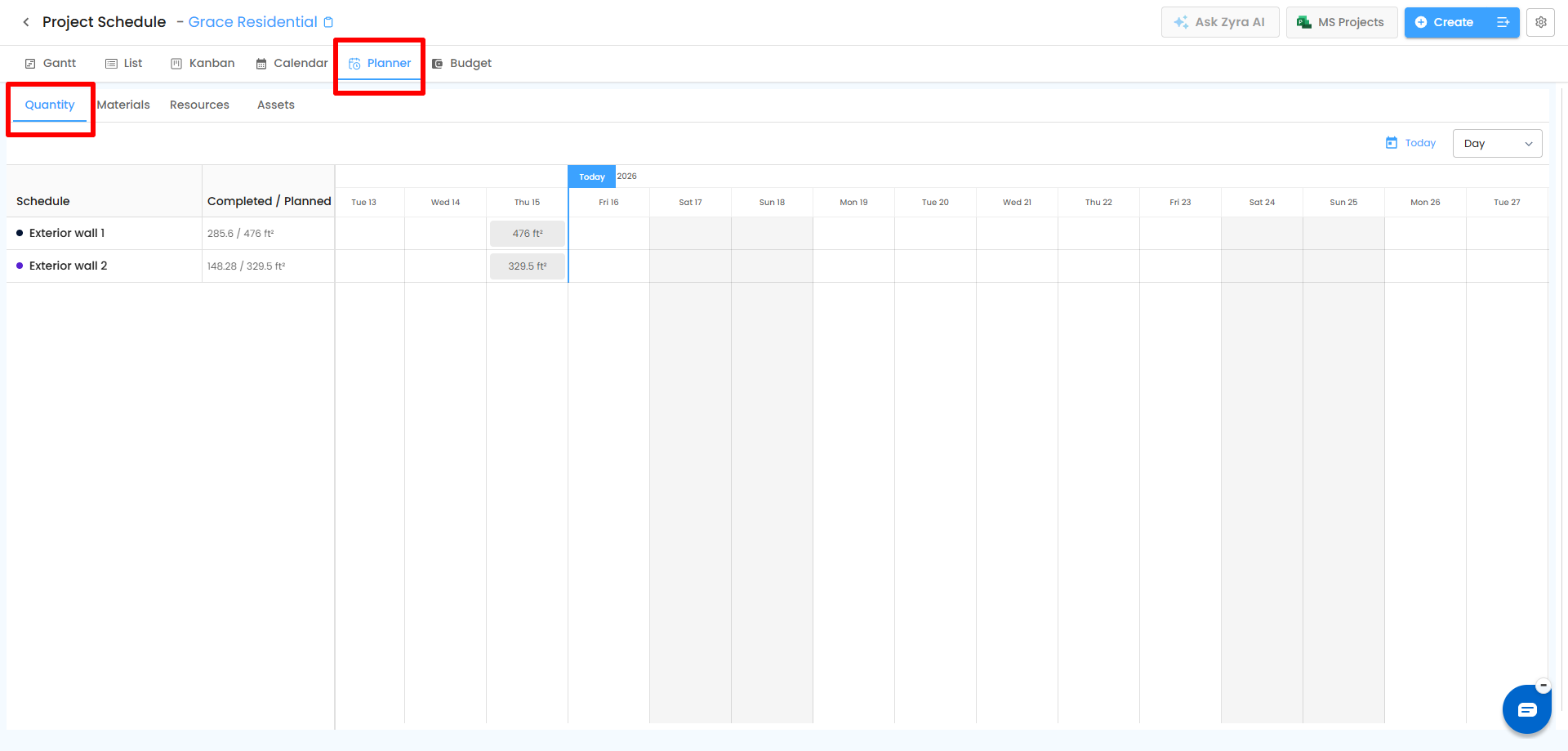
3. Quantity Planner
Track planned and used quantities across the schedule period.
- The schedule's Planned Qty is distributed across its dates, so you can see daily allocation and monitor progress.
Edit a day's quantity
- Open the schedule's Planner tab.
- Go to Quantity Planner.
- Find the day to update.
- Edit the quantity.
Important: The quantity entered must not exceed the schedule's planned quantity.
4. Asset Planning
From the project-level Planner you can add and manage assets used across the project's schedules, giving you one place to see and manage assets for planning activities.
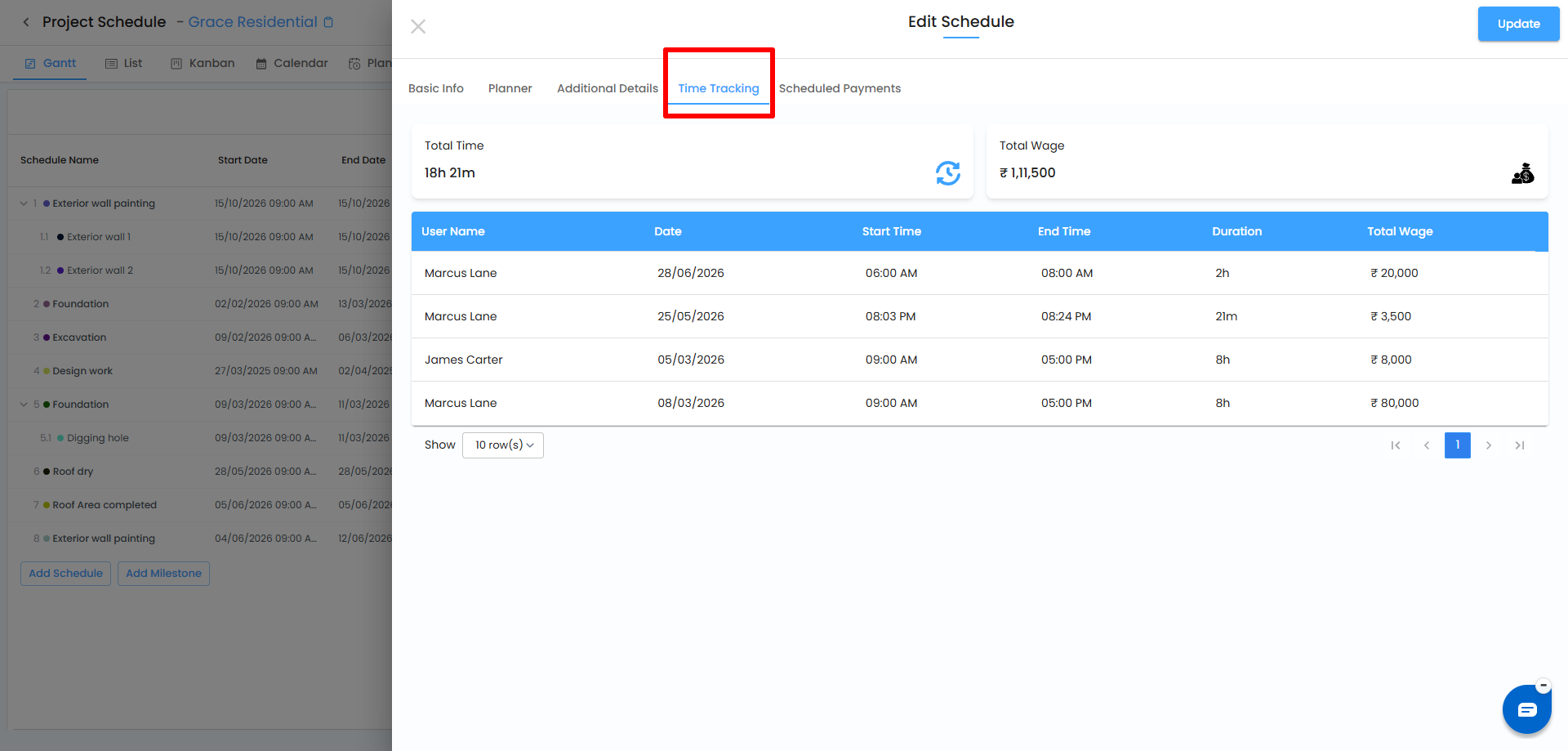
5. Timesheet and Wage Details
Link a schedule with timesheet information to track time and wages.
- Link Timesheet through the timesheet workflow.
- View Timesheet Details in the schedule's Planner once linked.
- Total Time – total time recorded against the schedule.
- Total Wage – total wages for the recorded timesheet information.
Understanding the Project-Level Planner
The project-level Planner brings planning information together across schedules:
| Section | What you can review |
|---|---|
| Materials | Planned, received, used, and unused quantities. |
| Resources | Workers and shifts linked to scheduled activities. |
| Quantities | Planned and used quantities across schedule periods. |
| Assets | Assets added and managed in the project-level Planner. |
| Timesheet Details | Time and wage information for linked schedules. |
Important Notes
- Material, Resource, and Quantity Planners are available for schedules except milestones.
- Checkboxes in the Material Planner select items for indent creation.
- Shifts can be created from a schedule or linked if they already exist.
- Daily quantity edits cannot exceed the planned quantity.
- To edit schedule-specific planning details, use that schedule's own Planner tab.
Related Articles
- Schedule Settings – Configure Your Project
- Schedule Multiple Views
- List View
Need Further Assistance?
If you need help managing materials, resources, quantities, assets, or timesheet information in the Schedule Planner, contact your organization administrator or the IntoAEC support team.
Was this article helpful?
That’s Great!
Thank you for your feedback
Sorry! We couldn't be helpful
Thank you for your feedback
Feedback sent
We appreciate your effort and will try to fix the article