Overview
The Work Order Report is where you watch execution actually happen - every work order issued, who it's assigned to, and how far along it is. Instead of chasing contractors for status updates, you get the whole picture of what's moving and what's stuck, in one view.
What You Can Do Here
- Track issued work orders - see everything created and sent out for execution
- Monitor work progress - understand where each work order stands right now
- Analyze work commitments - get a clear read on quantities, completion status, and execution flow across projects
Getting There
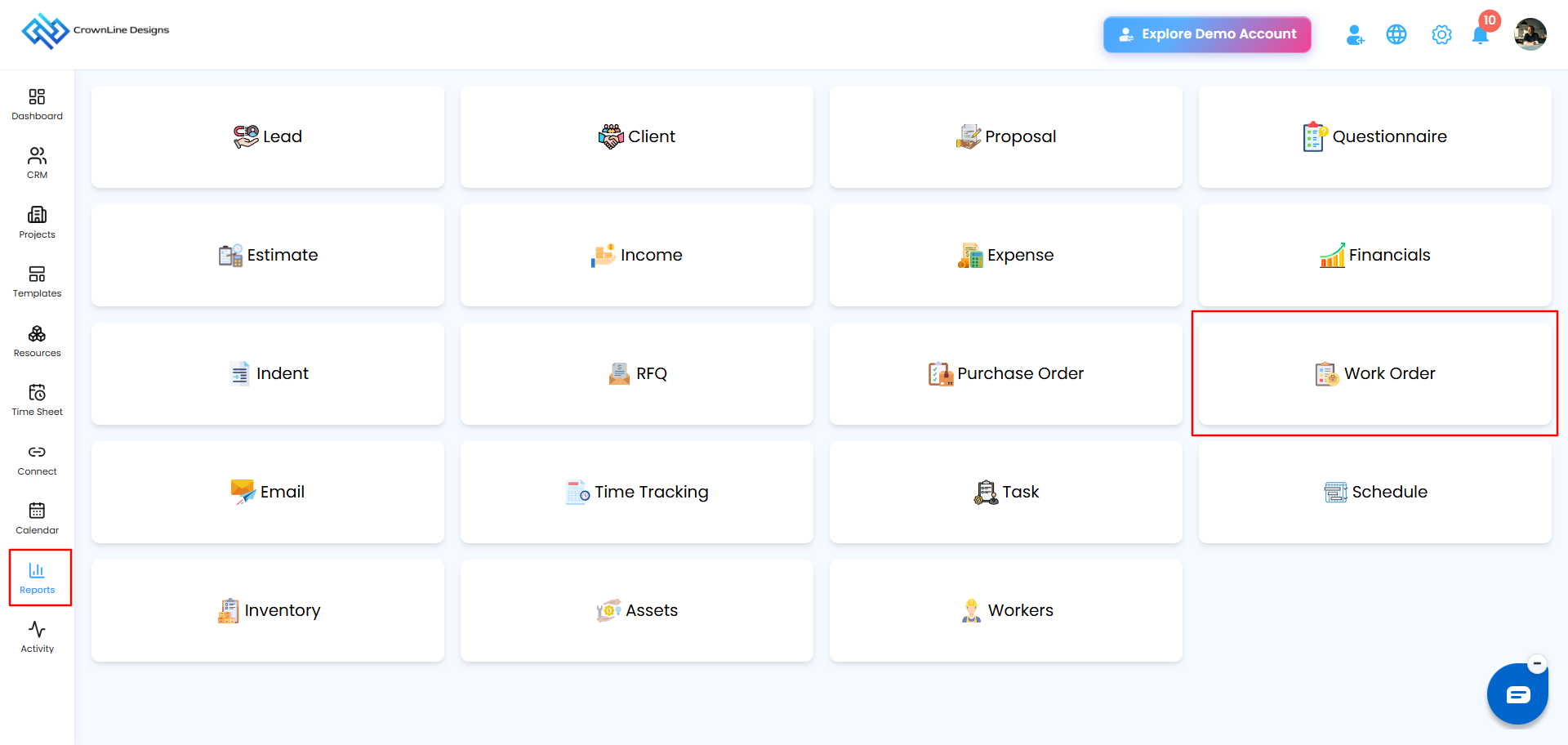
- Go to Reports from the main menu.
- Select Work Order to open the dashboard.
Dashboard at a Glance
Three numbers tell you how execution is going across the board:
- Total Work Orders - how many have been created
- Total In-Progress Work Orders - currently being executed
- Total Completed Work Orders - fully wrapped up
Filtering Your Results
Narrow the list down to exactly what you're looking for:
- Project Name - work orders for one specific project
- Select Vendor / Contractor - work orders assigned to a specific party
- Issued Between - work orders created within a date range
Click Apply to update the dashboard, or Clear to reset.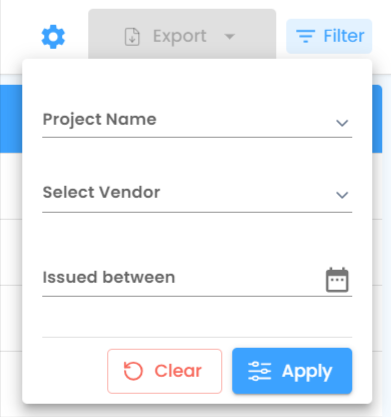
The Work Order Table
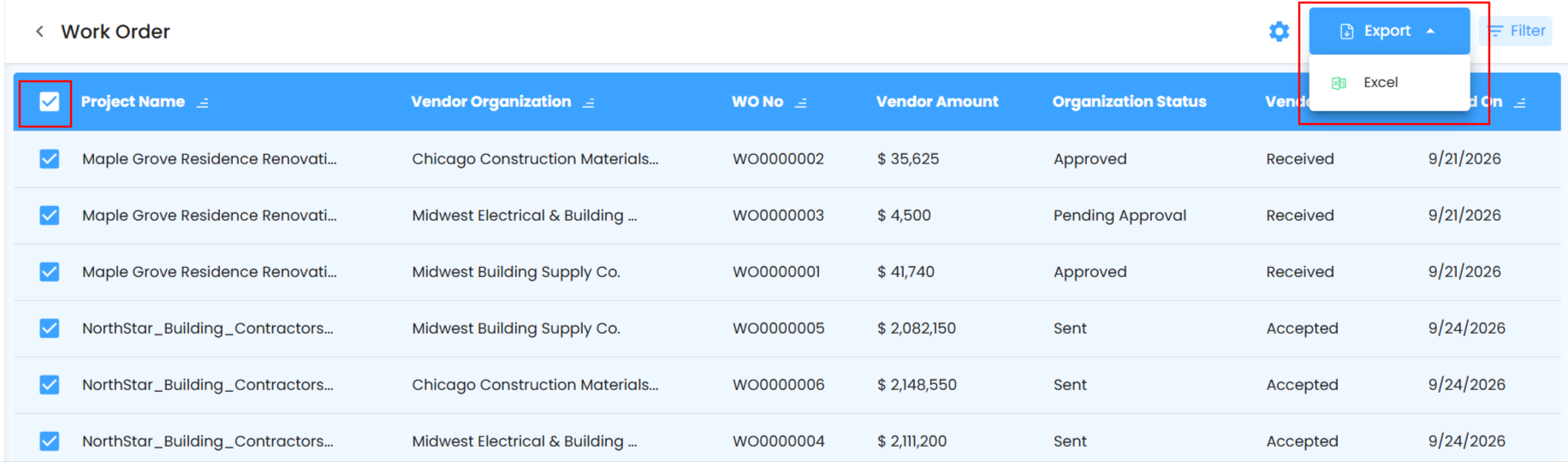
Each row is a clear snapshot of status and accountability:
| Column | What It Tells You |
|---|---|
| Project Name | The project linked to the work order |
| Vendor / Contractor | Who's responsible for the execution |
| Work Order Number | The work order's unique identifier |
| Organization Status | Your side's update - Sent or Approved |
| Execution Status | Yet to Start, In Progress, or Completed |
| Issued On | The date the work order was created |

Bulk Selection and Exporting
Select multiple work orders to manage together instead of one at a time. Click Export to download the data as an Excel file - including project details, vendor information, work order numbers, statuses, and issued dates - ready for audits, reviews, or internal reporting.
Automating Your Reports
Set it up once, and execution insights come to you - no manual checking required.
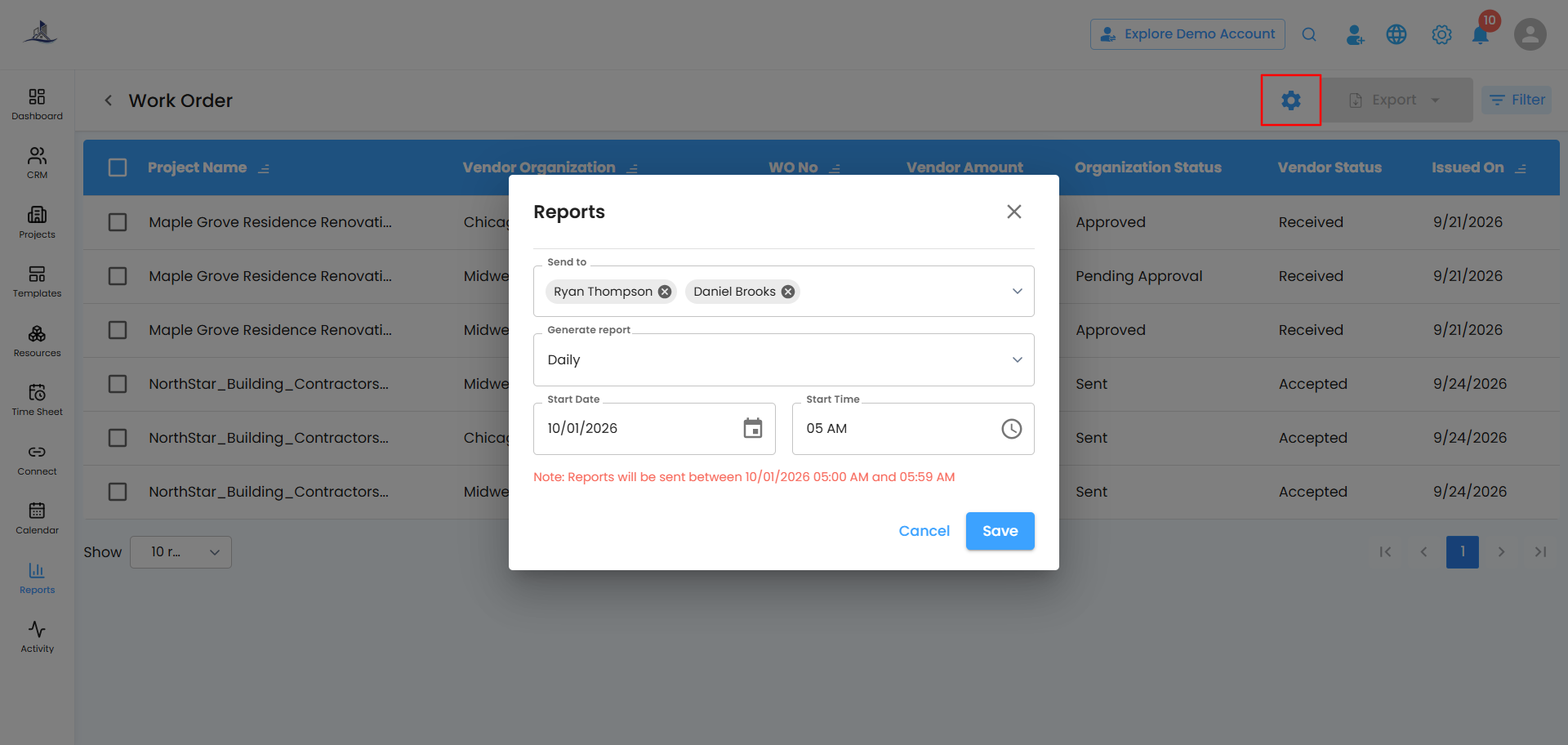
- Click the Configure Report Automation icon to open the popup.
- Choose your schedule under Generate Report:
- Daily (default) - generated within an hour of your chosen time
- Weekly - a week's summary, same day and time each week
- Monthly - a monthly overview, same day and time each month
- Set the Start Date and Start Time, then click Save - or Cancel to back out.
Editing Vendor Details on the Fly
Need to update a contractor's details mid-work order? No need to leave the screen - vendor details can be edited directly from the Add Vendor panel in RFQ, Purchase Order, and Work Order workflows alike, so a quick correction doesn't interrupt what you're working on.
Related Articles
Was this article helpful?
That’s Great!
Thank you for your feedback
Sorry! We couldn't be helpful
Thank you for your feedback
Feedback sent
We appreciate your effort and will try to fix the article