Theme Settings - Matching Your Brand Colors
Overview
Set your brand color once here, and it carries through everywhere your clients see you - your customer portal, and the estimates and proposals you send out. No need to update it separately in multiple places.
Getting There
Click Settings in the top right, select Preferences, then go to Customer Portal Configuration. Your theme settings are under the Themes section at the top of the page.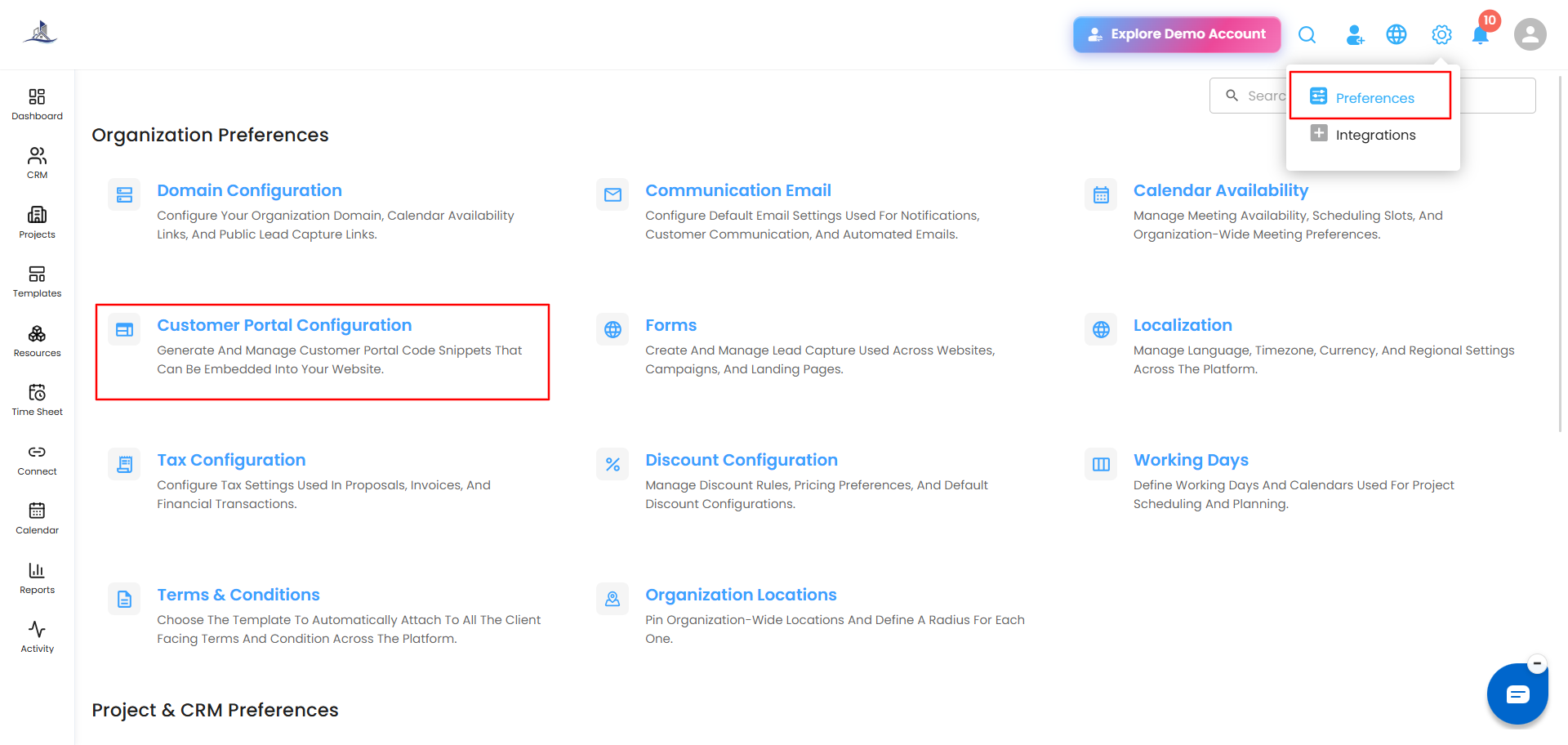
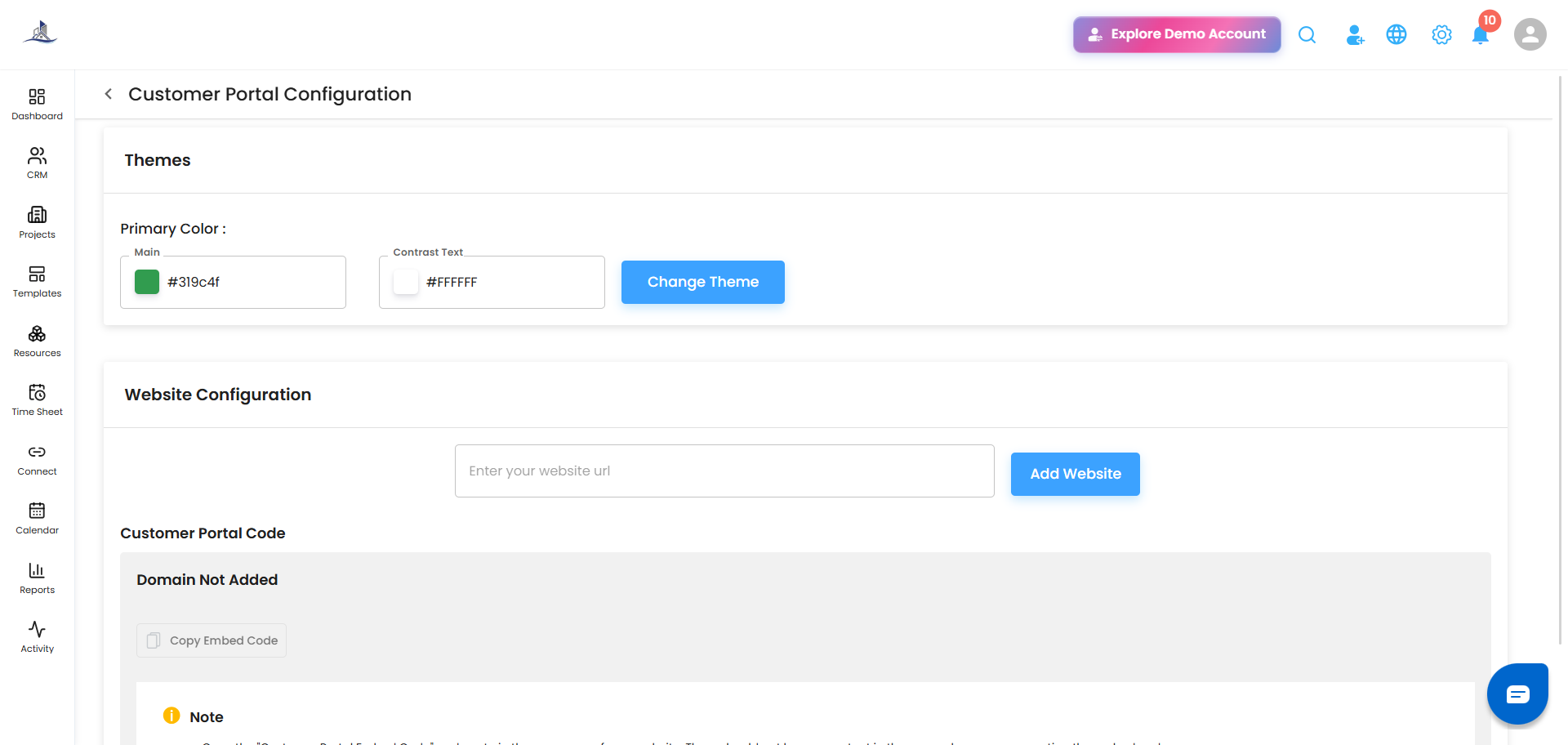
Updating Your Theme Color
- Under Primary Color, set the Main color - this is your core brand color, entered as a hex code (e.g., #3CA2FF) or picked using the color swatch.
- Set the Contrast Text color - the text color that displays on top of your main color, so it stays readable (e.g., #FFFFFF for white text on a dark background).
- Click Change Theme to apply it.
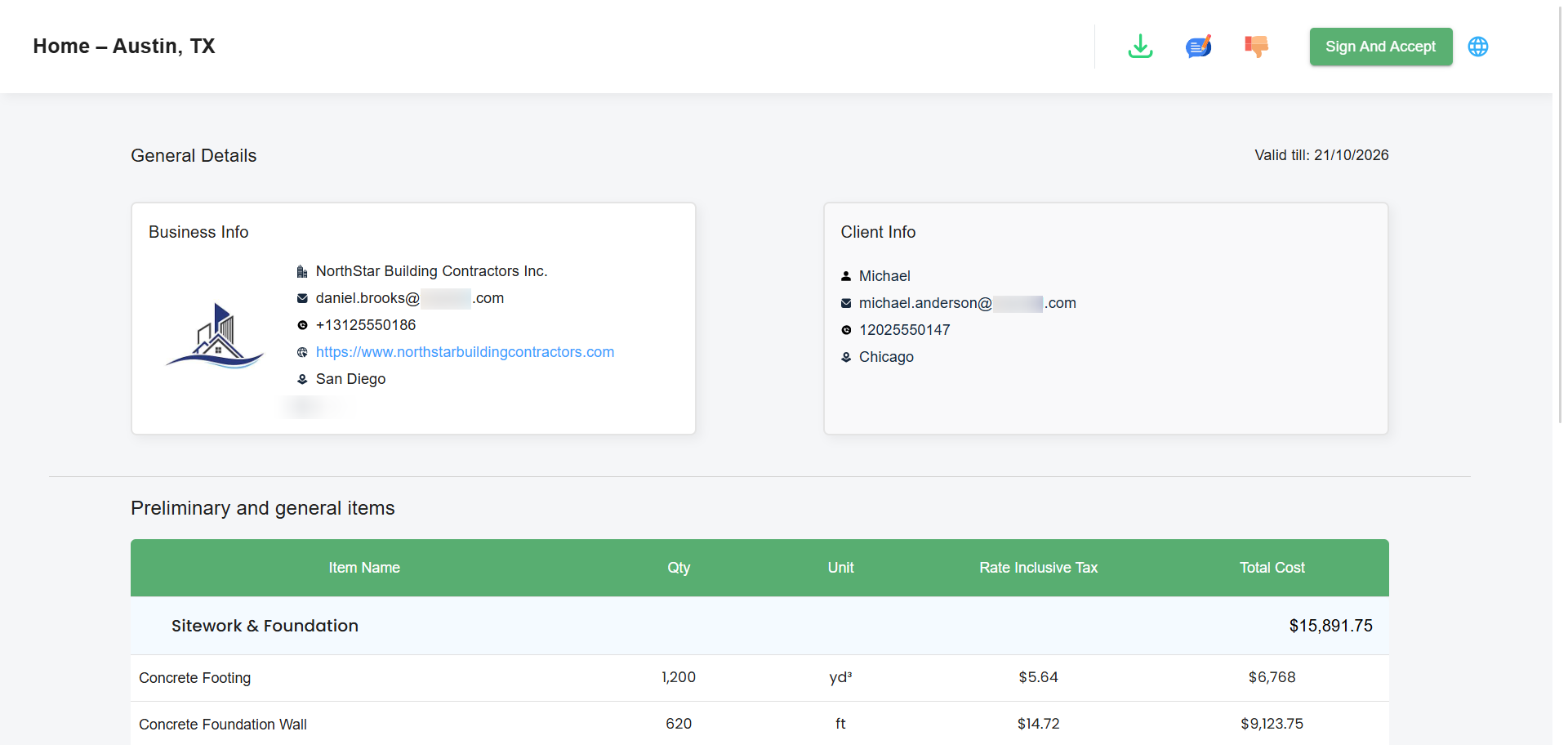
Note: Once applied, your new theme colors show up automatically wherever your brand appears to clients - including the header and preview of any estimate you send from this point on.
Tip: Update your theme before sending out new estimates, so clients see your latest branding rather than the old colors.
Was this article helpful?
That’s Great!
Thank you for your feedback
Sorry! We couldn't be helpful
Thank you for your feedback
Feedback sent
We appreciate your effort and will try to fix the article